Billing & Payments
NidanEHR uses Odoo as its billing and financial management system. Billing is integrated with the clinical, laboratory, radiology, pharmacy, and inpatient modules, so every billable service a patient receives is captured and charged automatically without duplicate data entry.
Odoo supports the full billing lifecycle:
- Automatic quotations and invoices for healthcare services.
- Payment collection through multiple methods.
- Outstanding balance and payment status tracking.
- Billing validation tied to clinical, laboratory, radiology, and pharmacy workflows.
- Receipt generation and printing.
- Financial reporting and revenue tracking.
POS Shops
The Odoo Point of Sale can be configured with multiple shops, each with a specific purpose:
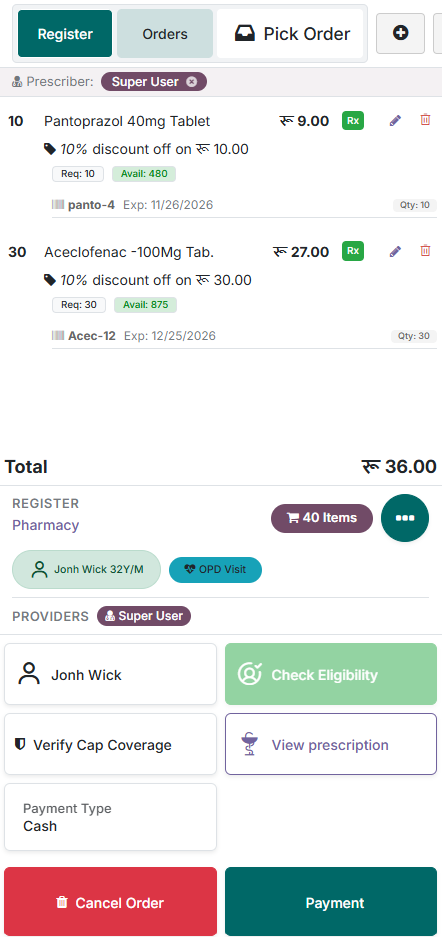
- Registration/Billing — patient registration and billing of healthcare services such as consultation fees, laboratory tests, radiology, and procedures.
- Pharmacy — billing and dispensing of medications and medical items (see Pharmacy Dispensing).
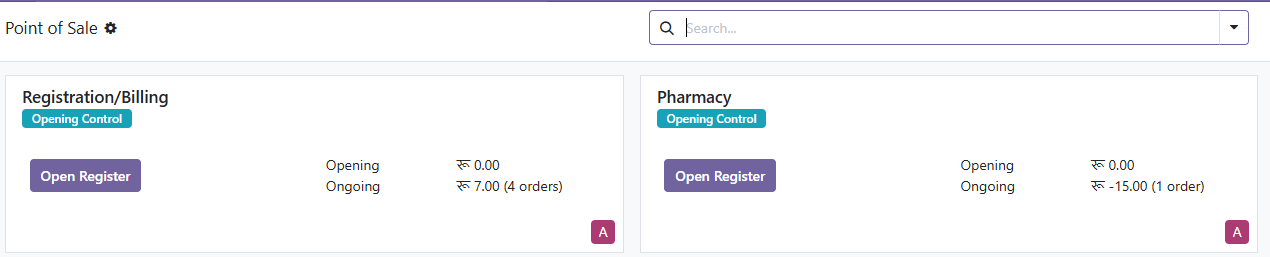
Billable services generated from the clinical, laboratory, radiology, and pharmacy modules are reflected automatically in the appropriate shop, which lets departments manage billing independently while records stay centralized in Odoo.
Service Billing
To bill for services, select the Registration/Billing POS shop. When a provider places an order in the clinical system, the corresponding charges are generated automatically in this shop, where billing staff review pending services, collect payment, generate the invoice, and print the receipt.
Opening the register
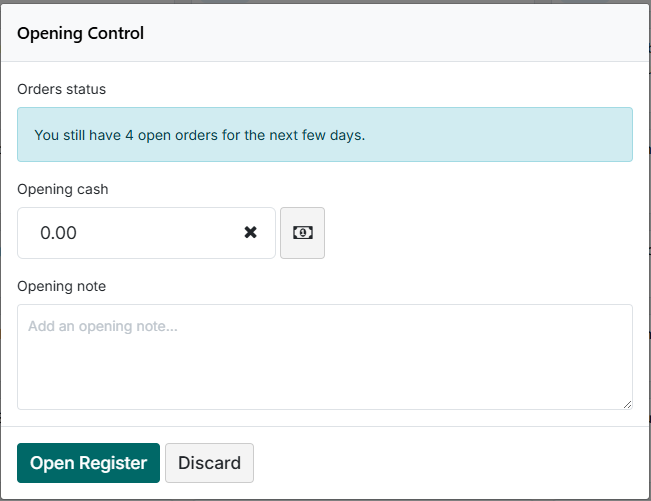
The first time a shop is opened for a shift, the Opening Control box appears. Opening Cash is the amount already in the cash drawer at the start of the shift. Counters that do not hold cash can open with 0.00 using Open Register.
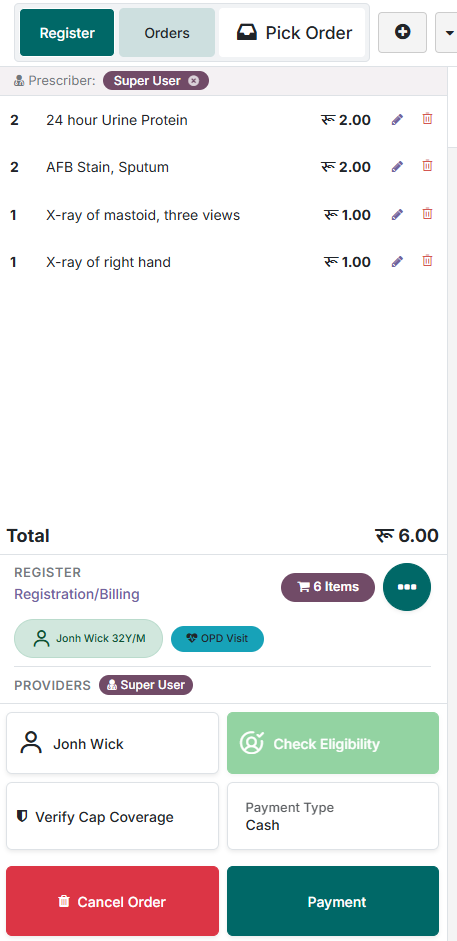
In this example, an order was placed in the clinical section for patient John Wick.
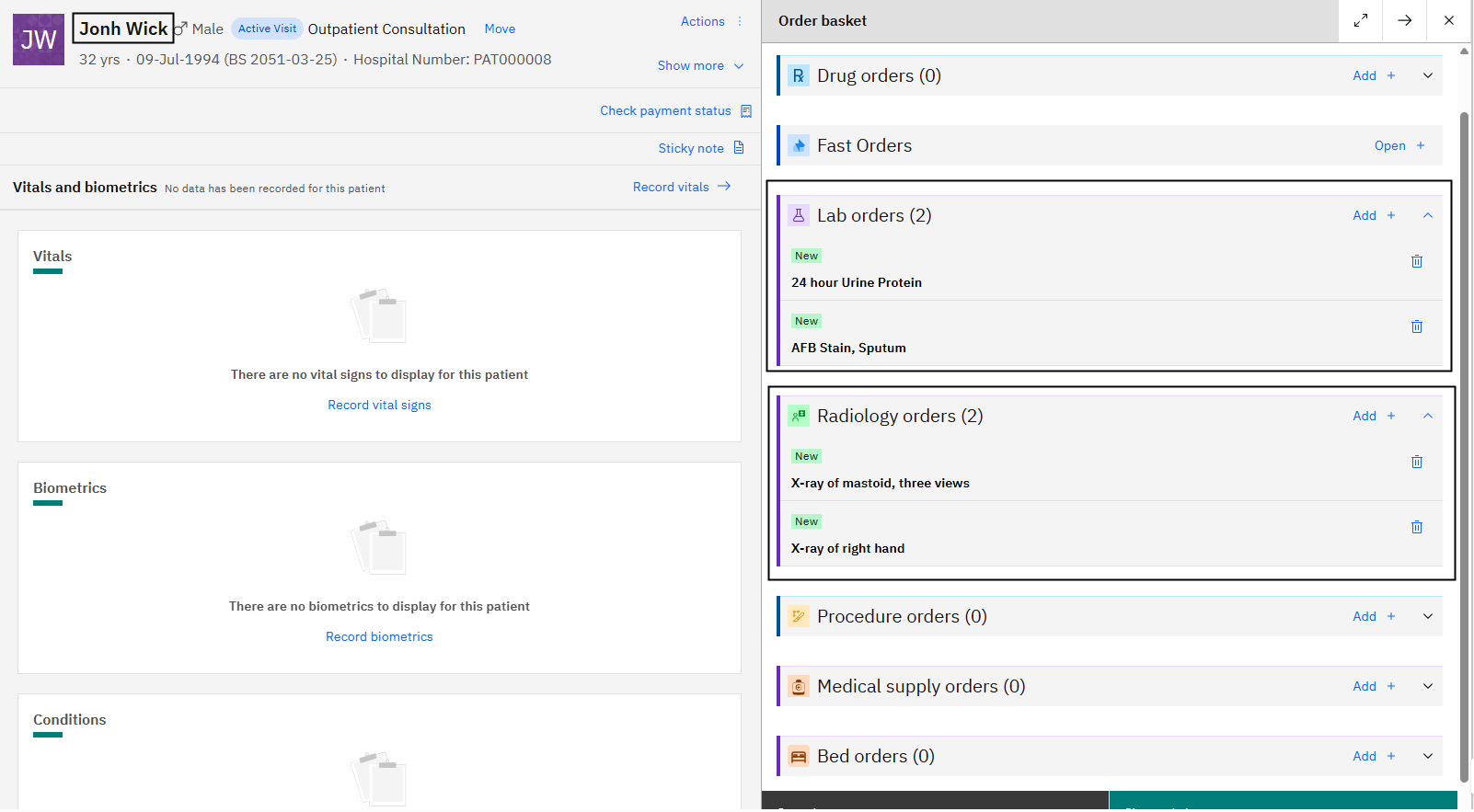
Select the Orders button in the Registration/Billing shop to open the list of pending service orders.
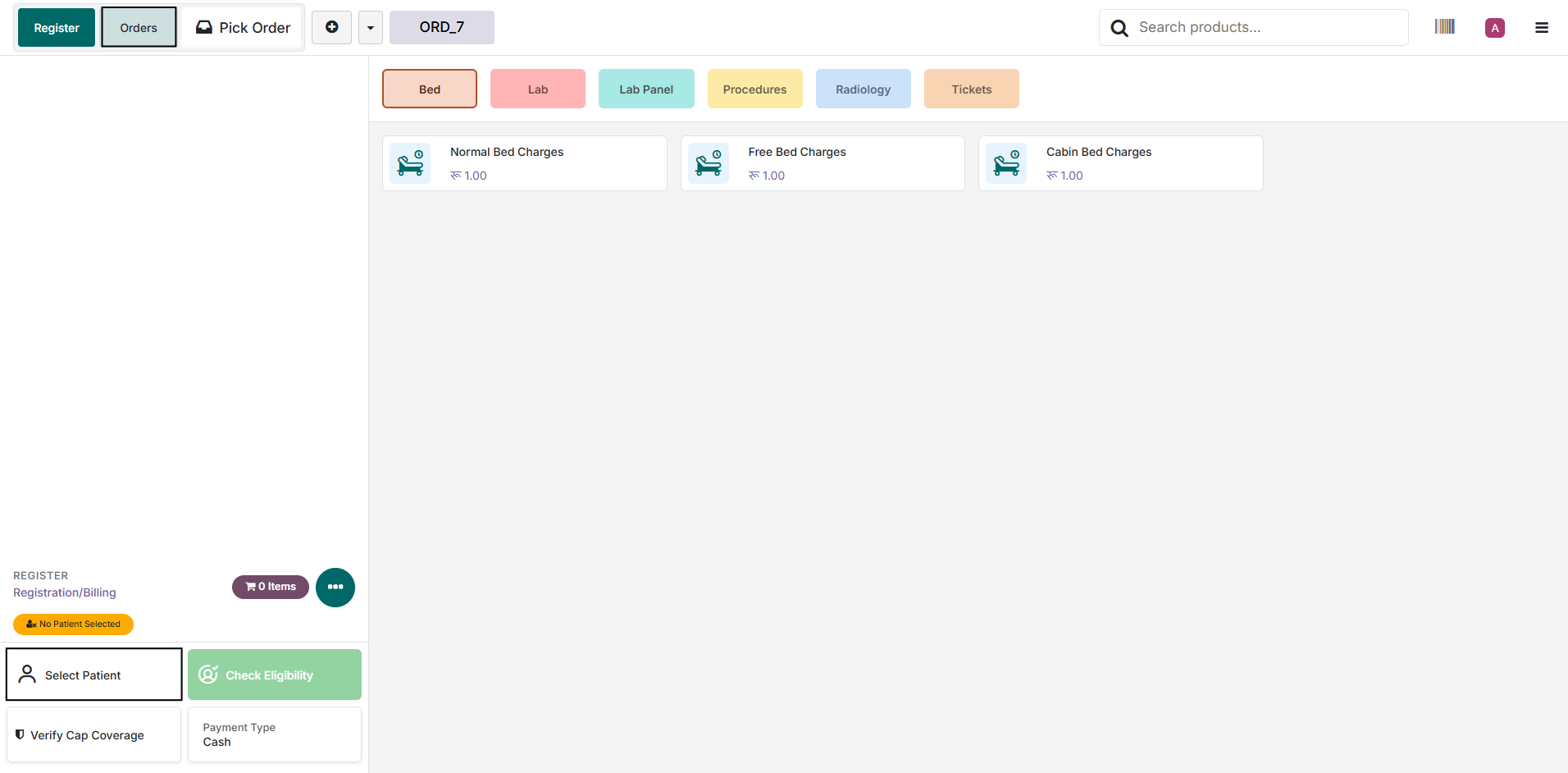
Use the search bar to find the patient by Patient Name, Patient ID, or Order Number.
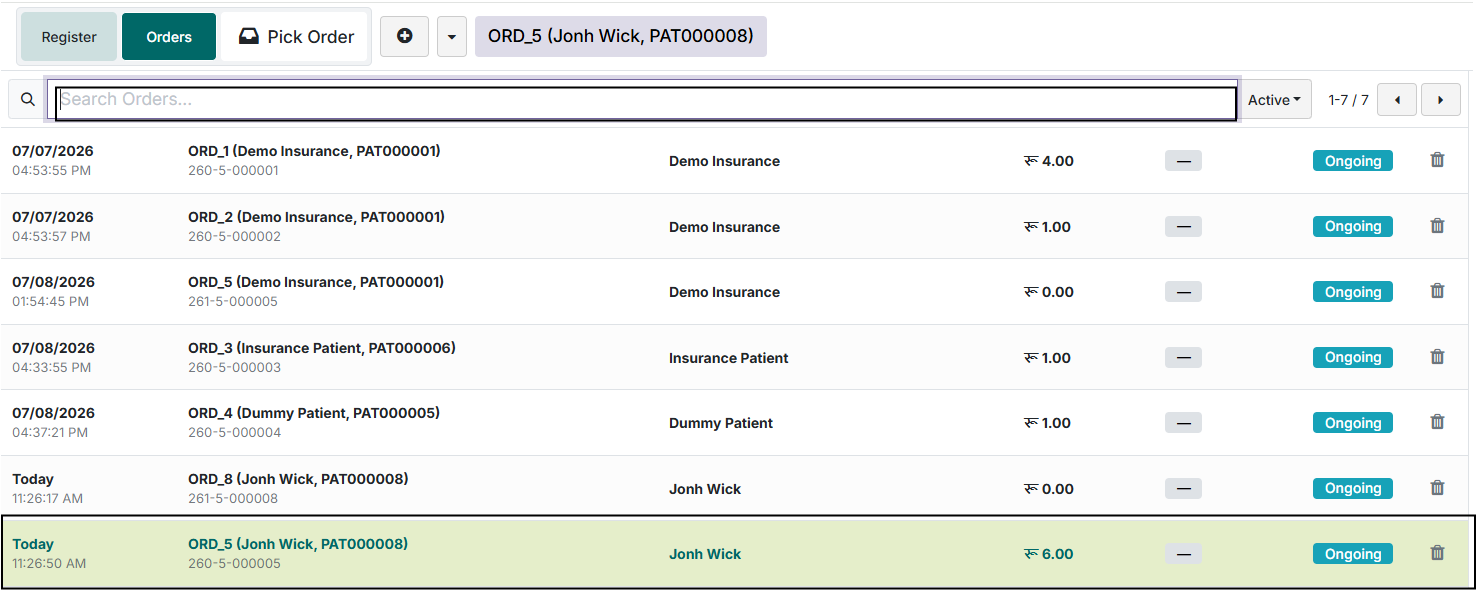
Search for the patient and select their order to view the billable services.

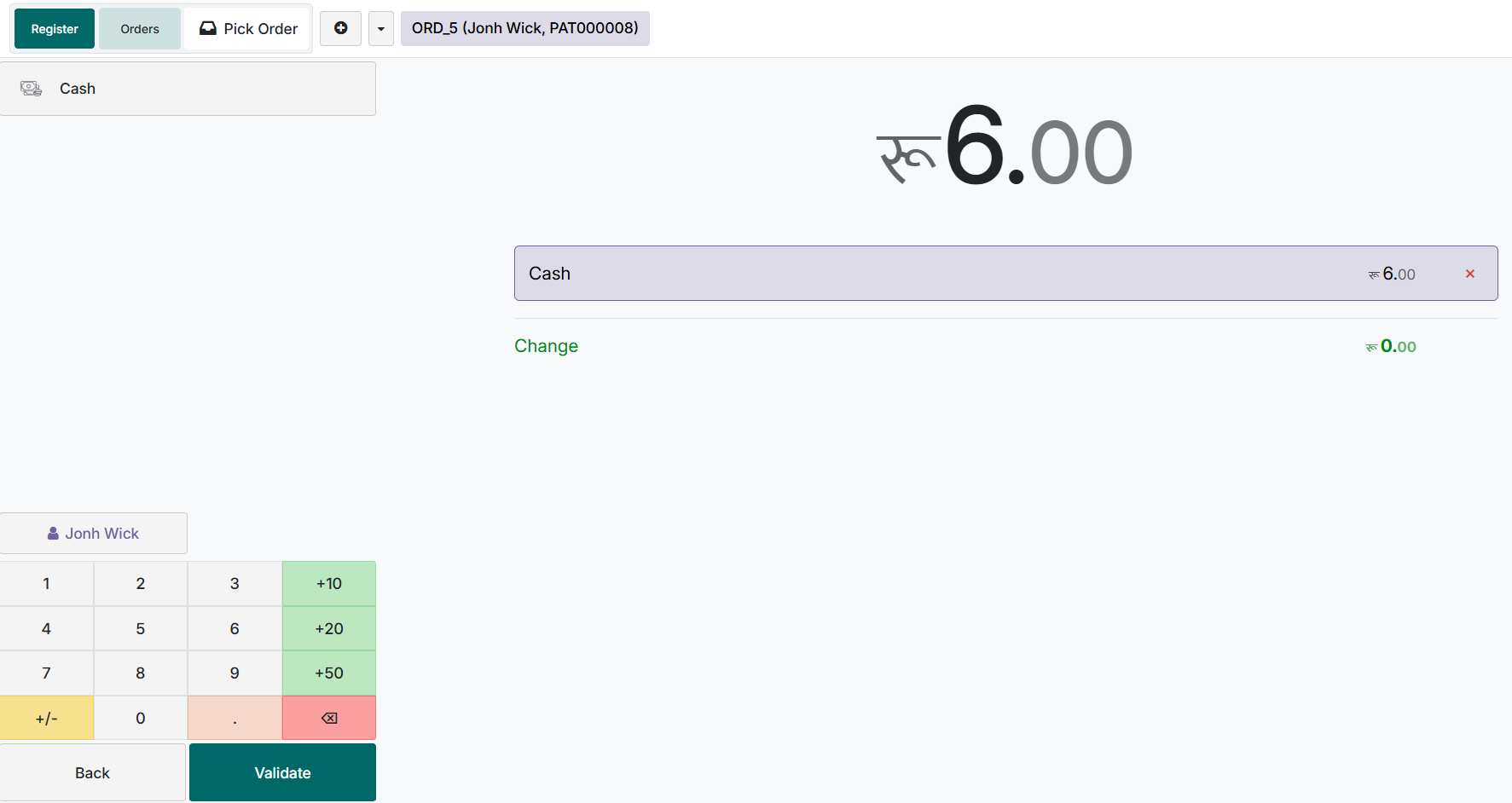
The order lists the services ordered through the clinical system. Select the Payment Type — Cash, Card, or Health Insurance — click Payment, and complete the transaction. Use Validate to finish billing and generate the receipt.
Discounts on Line Items
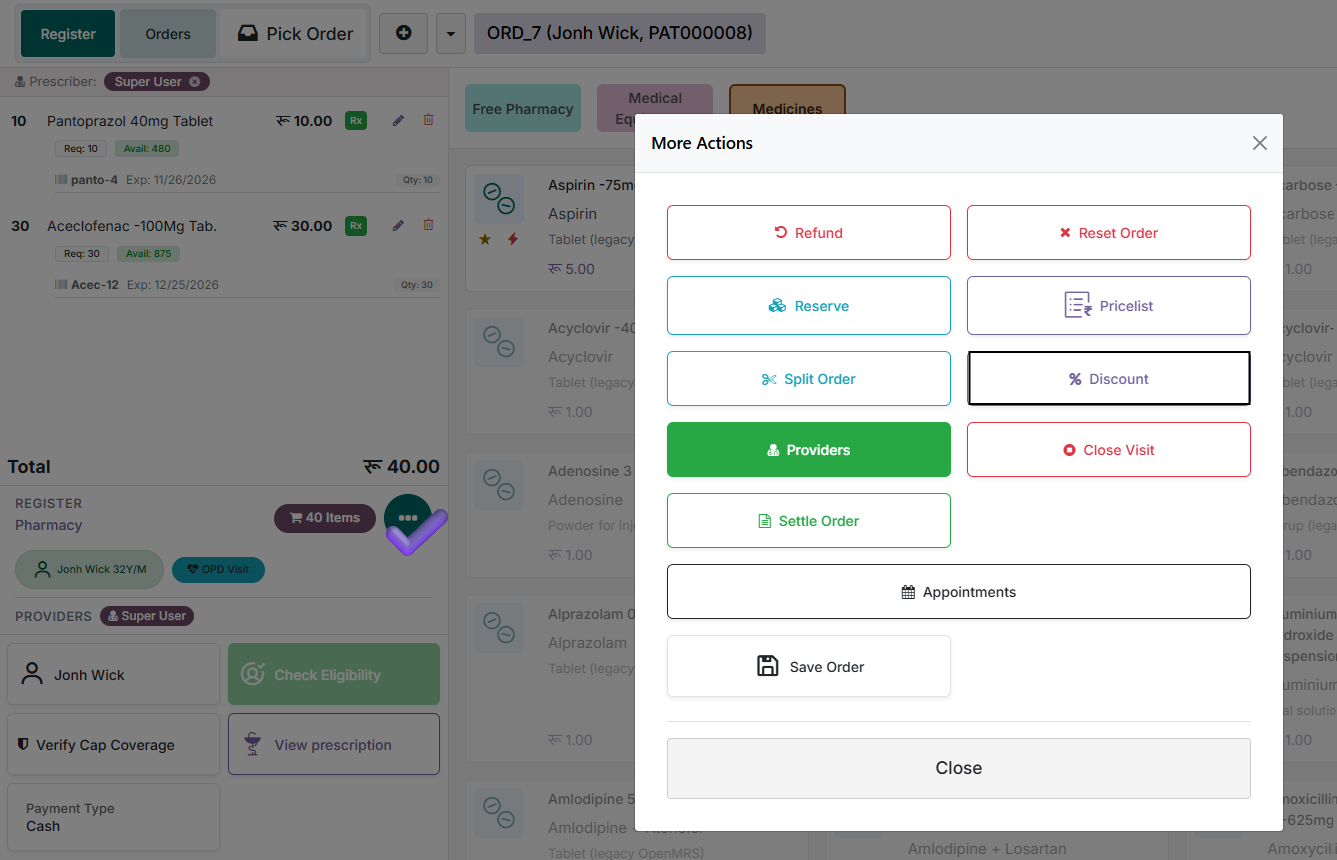
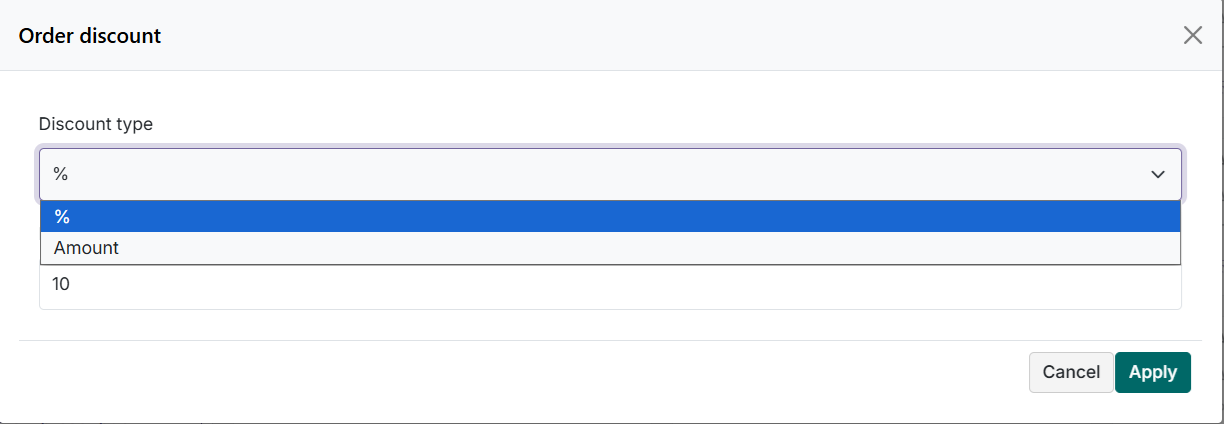
The POS supports discounts on individual line items, applied in two ways:
- Percentage (%) discount — a percentage-based discount on the selected line item.
- Fixed amount discount — a fixed monetary discount on the selected line item.
The system recalculates the line total and order total automatically.
Proceeding with Payment
After reviewing the order and applying any discounts or quantity changes, click Payment, select the payment method (Cash, Card, or Health Insurance), and complete the transaction. The system generates the invoice and receipt, and the order status changes to Paid.