Cashier Operations
This page covers the cashier-side tasks in Odoo POS: processing sales returns, reconciling and closing the shop at the end of a shift, recording cash movements, and pulling the daily sales report.
POS Sales Return
The sales return feature processes the return of previously billed items or services in line with the hospital's return policy. A return references the original transaction for full traceability, calculates the refundable amount, and — for pharmacy items — returns stock to inventory subject to policy and validation.
Initiating a return
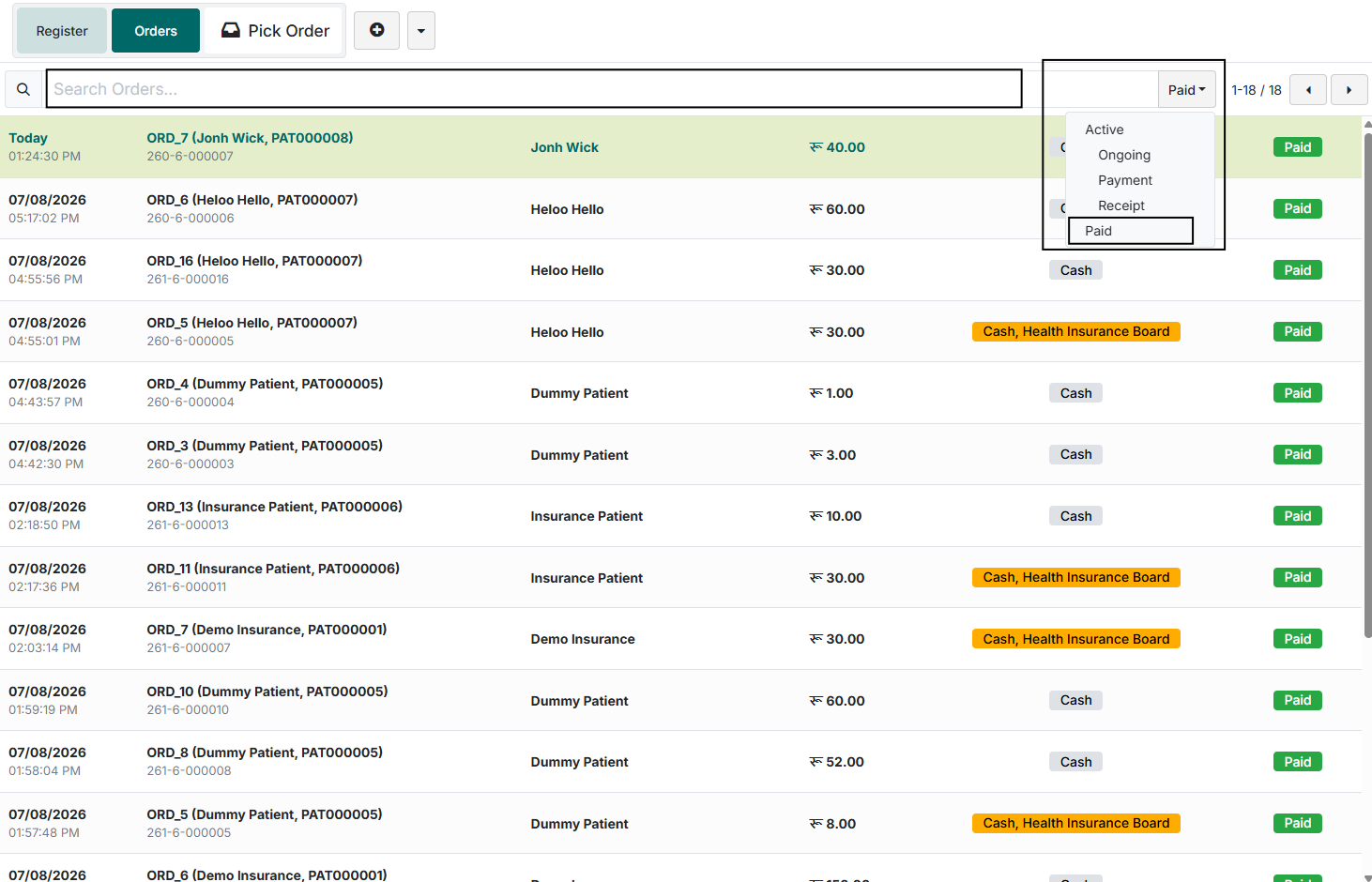
Open the Orders section and select the Paid filter to list orders eligible for return. Search for the patient by Patient Name, Patient ID, or Order Number and select the completed transaction.
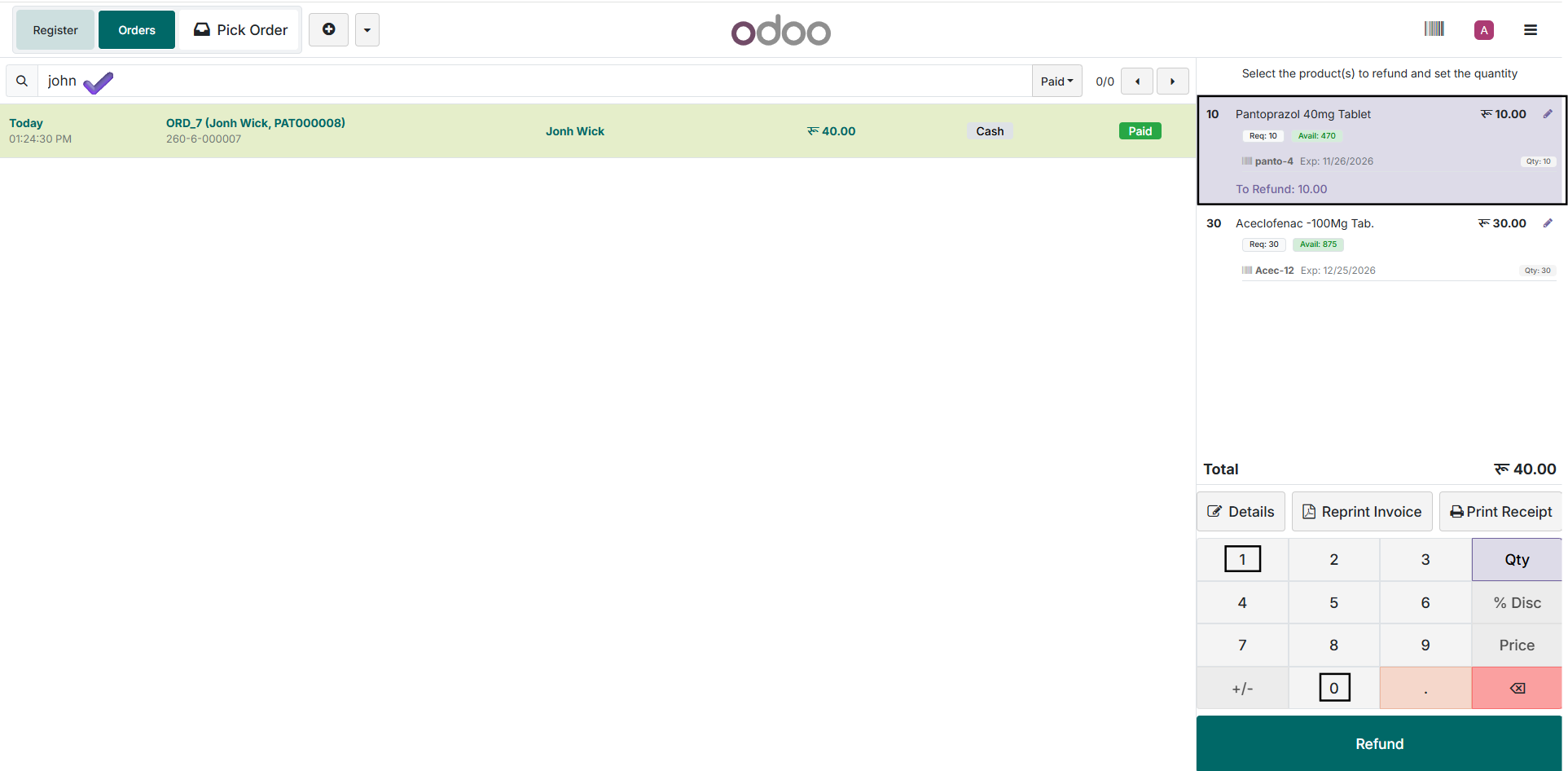
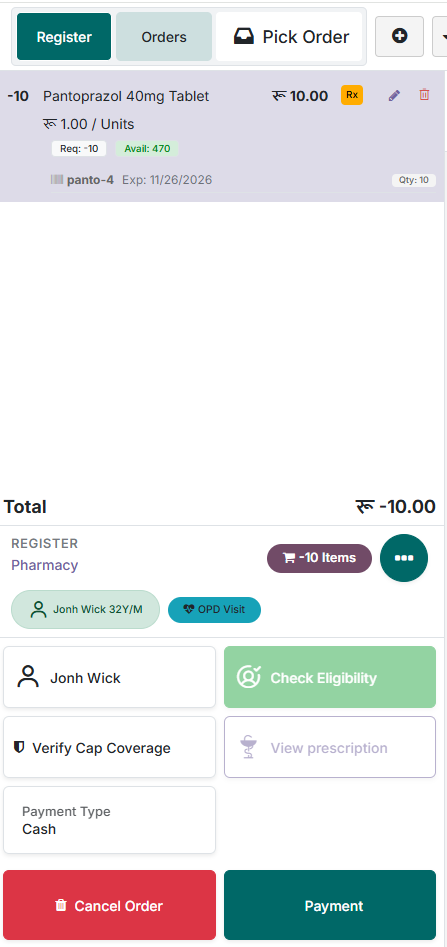
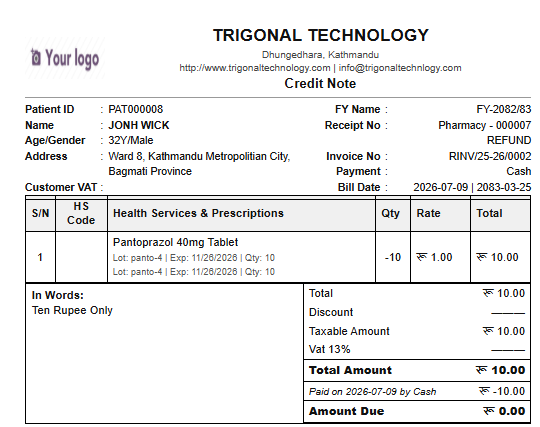
Select the item(s) to return and set the refund quantity using the on-screen numeric keypad. In this example, Pantoprazole 40 mg Tablet is selected with a refund quantity of 10.
Return approval
If the Odoo user does not have the privileges to process a sales return, the system generates a return approval request and submits it to an authorized administrator. The return cannot proceed until the request is approved.
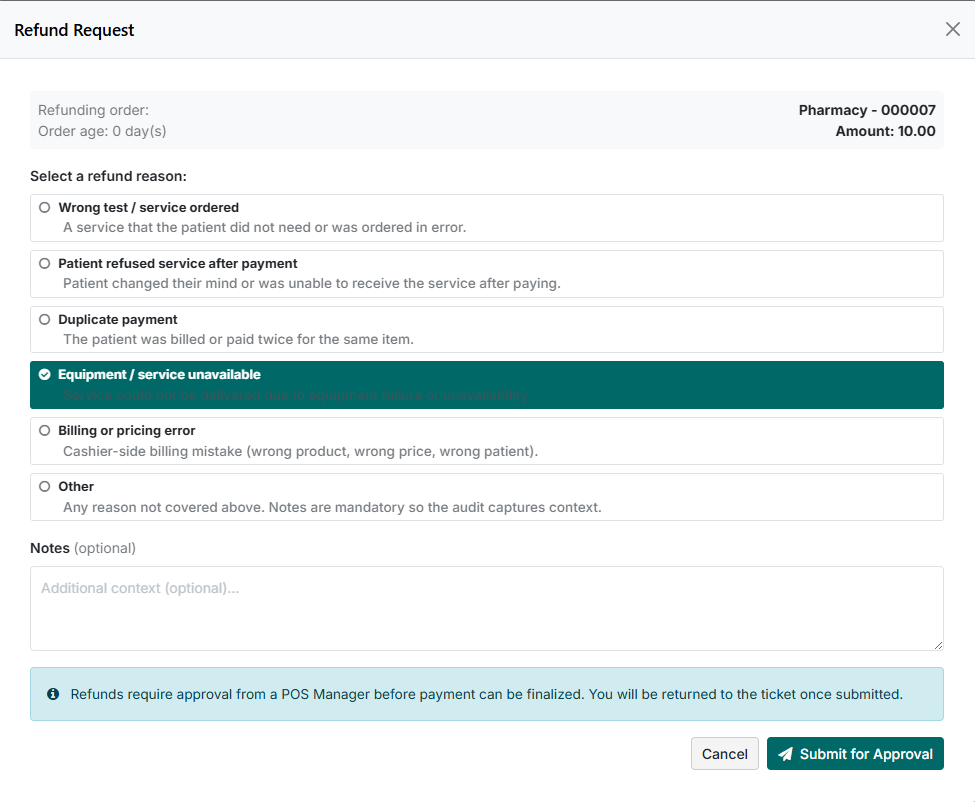
The user provides a reason with the refund request.

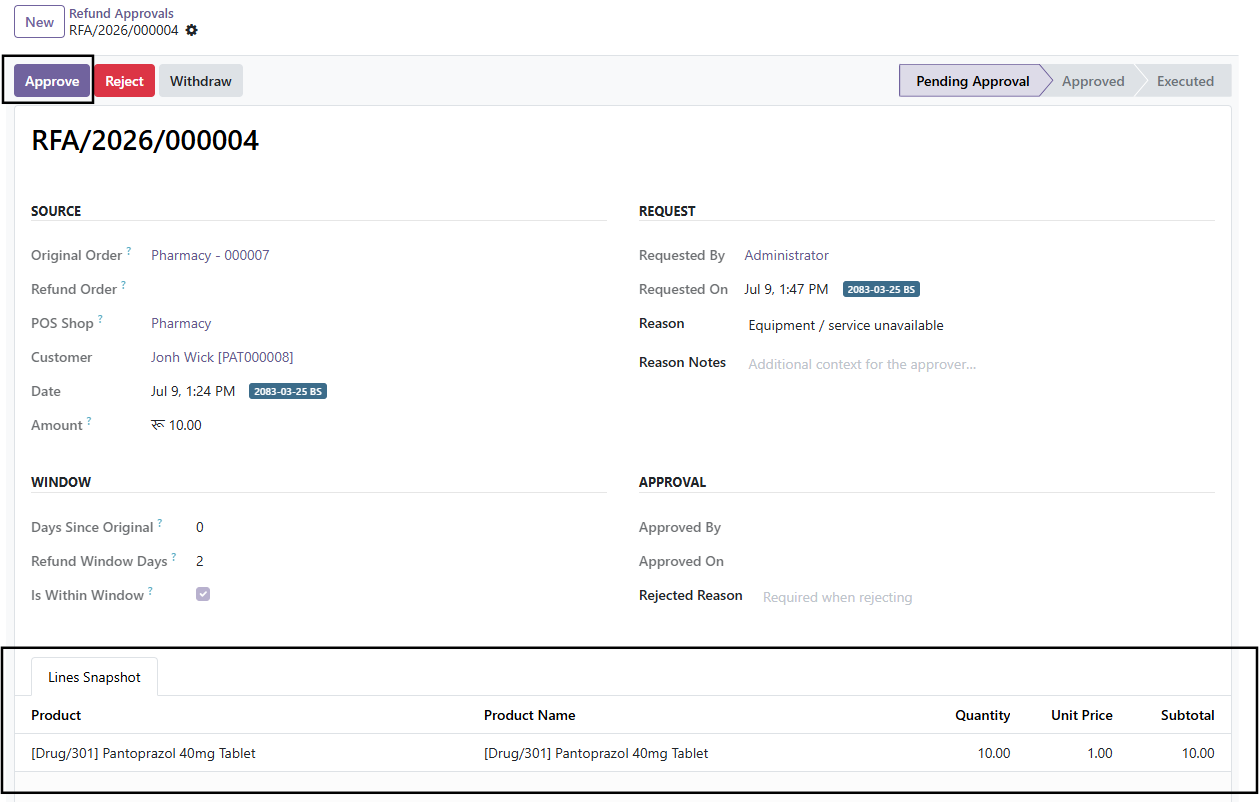
The request appears under POS Orders → Refund Approvals. Once the refund administrator approves it, the user can proceed. Resume from the same screen after approval.
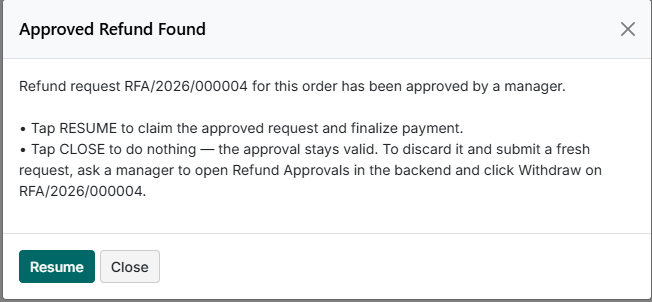
Completing the refund
After approval, click Resume to open the Select Lots screen. Select the appropriate lot and enter the return quantity. The system validates that the return quantity does not exceed the quantity originally sold from that lot.
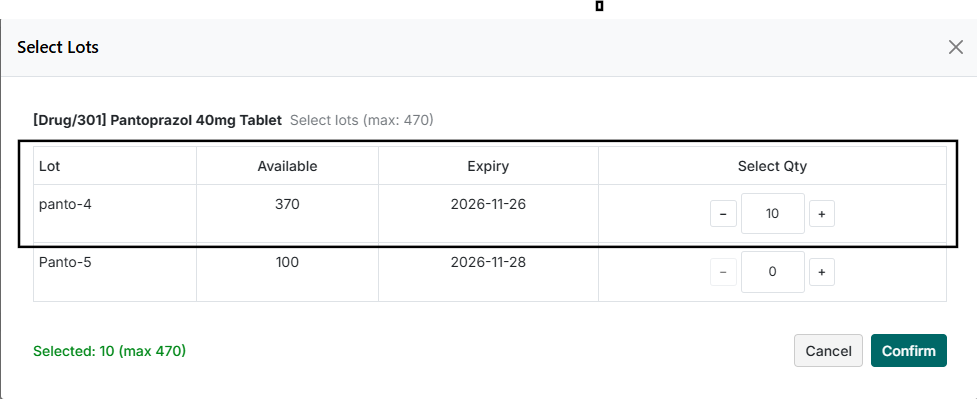
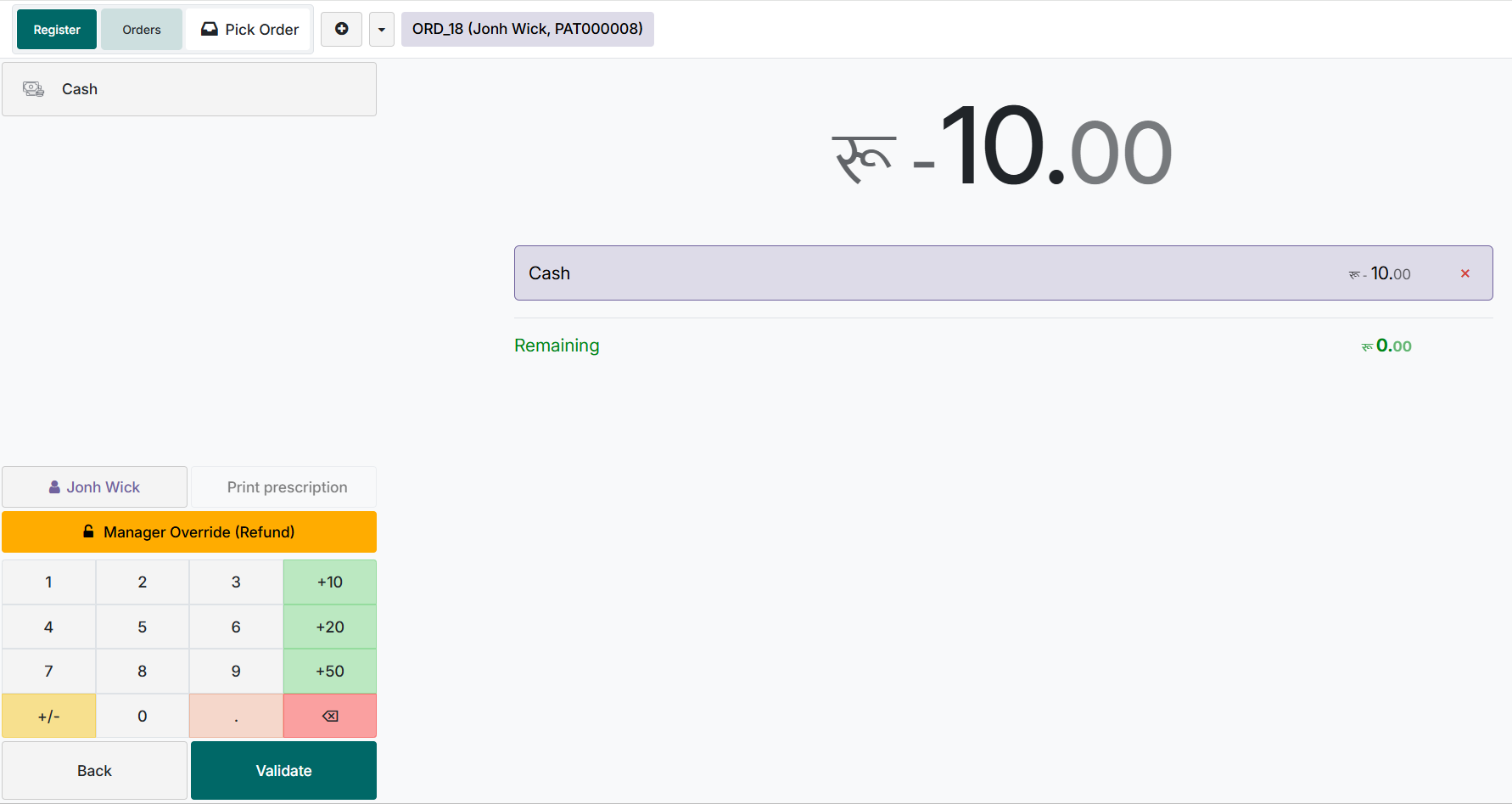
Click Confirm to generate the POS Refund Order, select Payment, choose the refund payment method, and validate the transaction. The system generates a refund invoice, deducts the refunded amount from the original sale, and returns the refunded quantity to inventory.
Closing the POS Shop
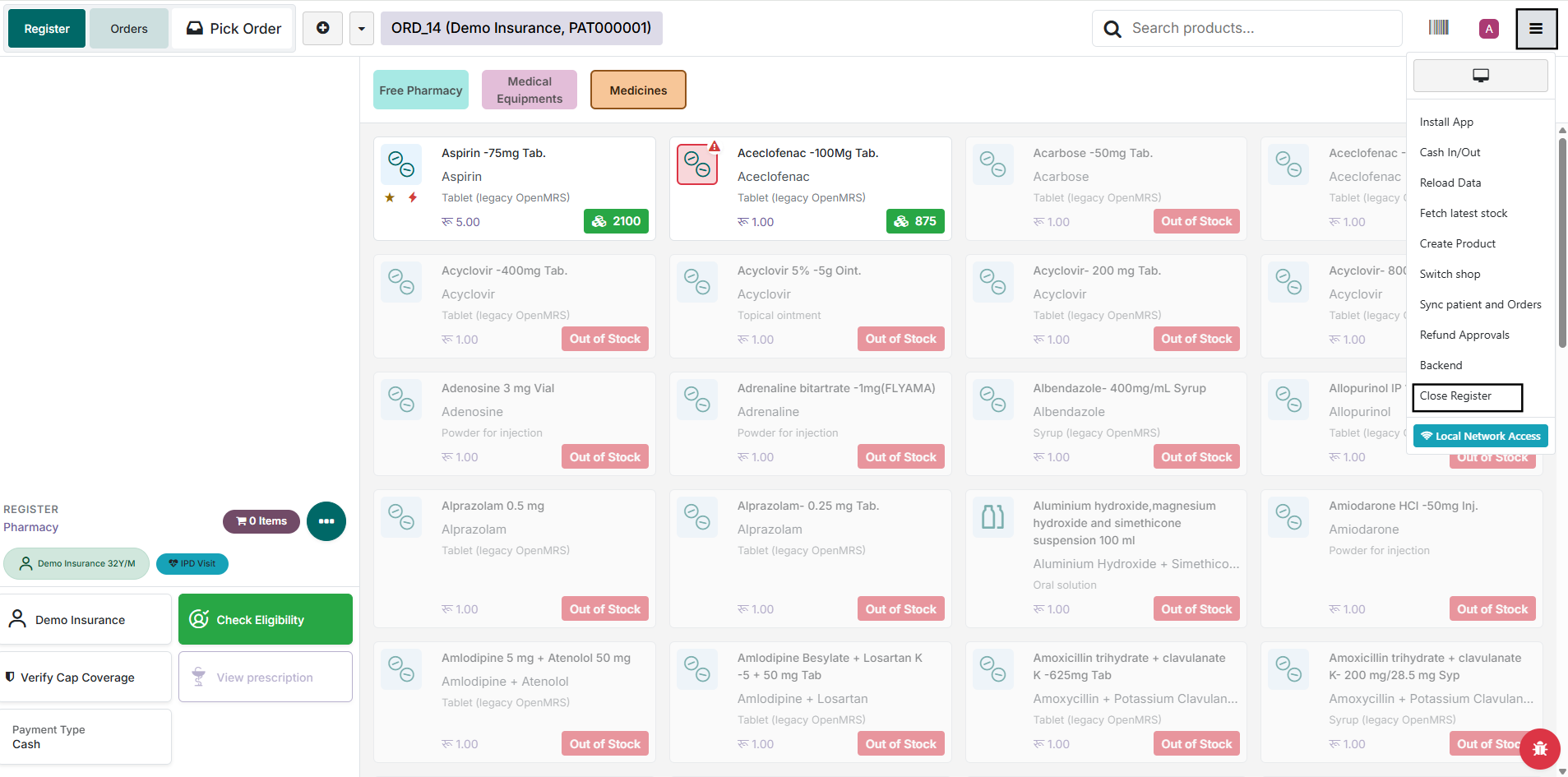
At the end of a shift or business day, close the POS shop to complete the billing session. Before closing, verify the day's transactions — total sales, payments collected, refunds, and cash balance.
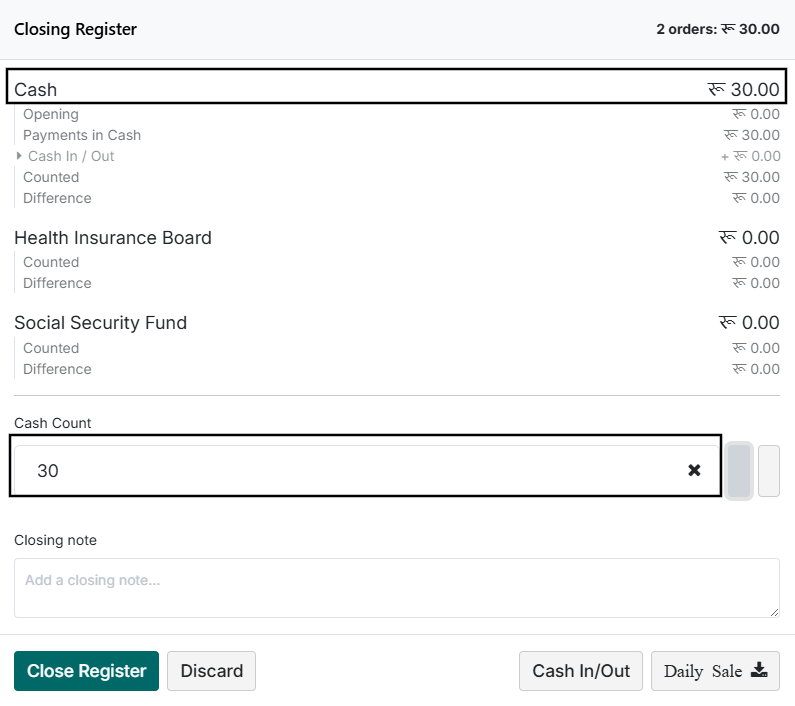
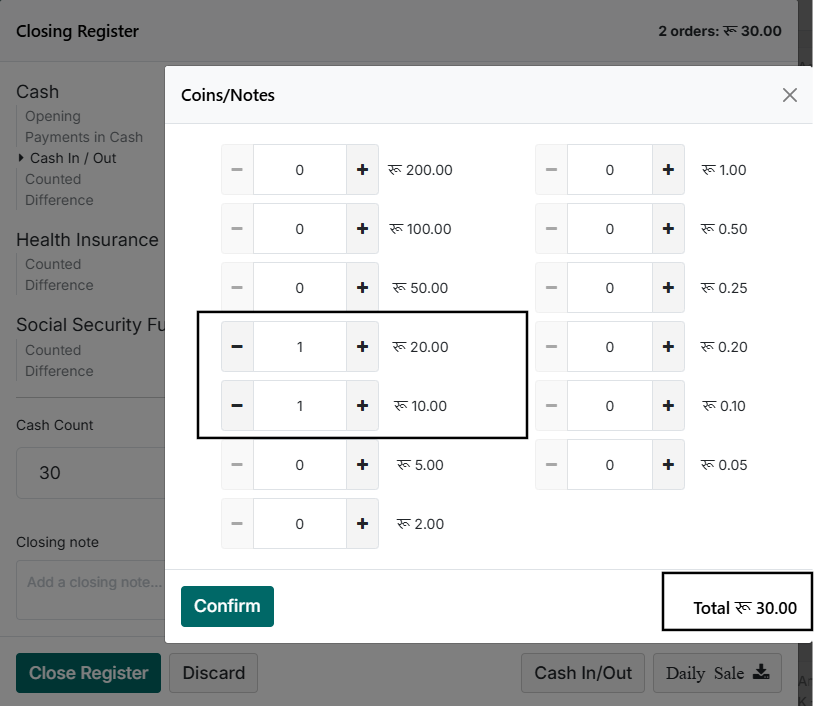
Enter the actual cash collected in the Cash Count section. The system compares it with the expected balance and highlights any difference before the session closes.
Cash In / Out
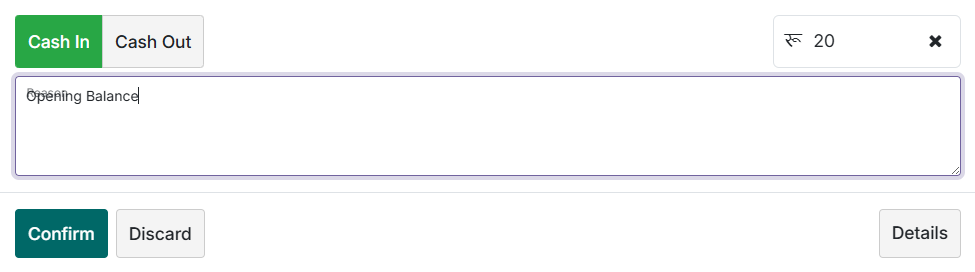
The Cash In/Out feature records cash movements during an active session without affecting sales transactions:
- Cash In — cash added to the drawer (opening cash, deposits, other authorized receipts).
- Cash Out — cash removed from the drawer (bank deposits, petty cash, other authorized withdrawals).
For each entry, enter the amount, choose Cash In or Cash Out, and provide a reason. All movements are included in the reconciliation at shop close.
Currency note count
The Currency Note Count feature records the number of notes and coins in the drawer at shop close. Enter the quantity for each denomination and the system calculates the total, which is used to verify the cash count against the expected balance.

Daily sales
Download a detailed Daily Sales Report with the Daily Sales button. It summarizes billed services, pharmacy sales, payment methods, refunds, discounts, and total collections for daily reconciliation. Once the details are confirmed, complete the closing with Close Register.
