Pharmacy Dispensing
Use the Pharmacy POS shop to bill medications and pharmacy items. As with service billing, search for the patient, open their pharmacy order, run the dispensing checks, collect payment, and print the receipt.
In this example, an order was placed from the clinical section for the patient.
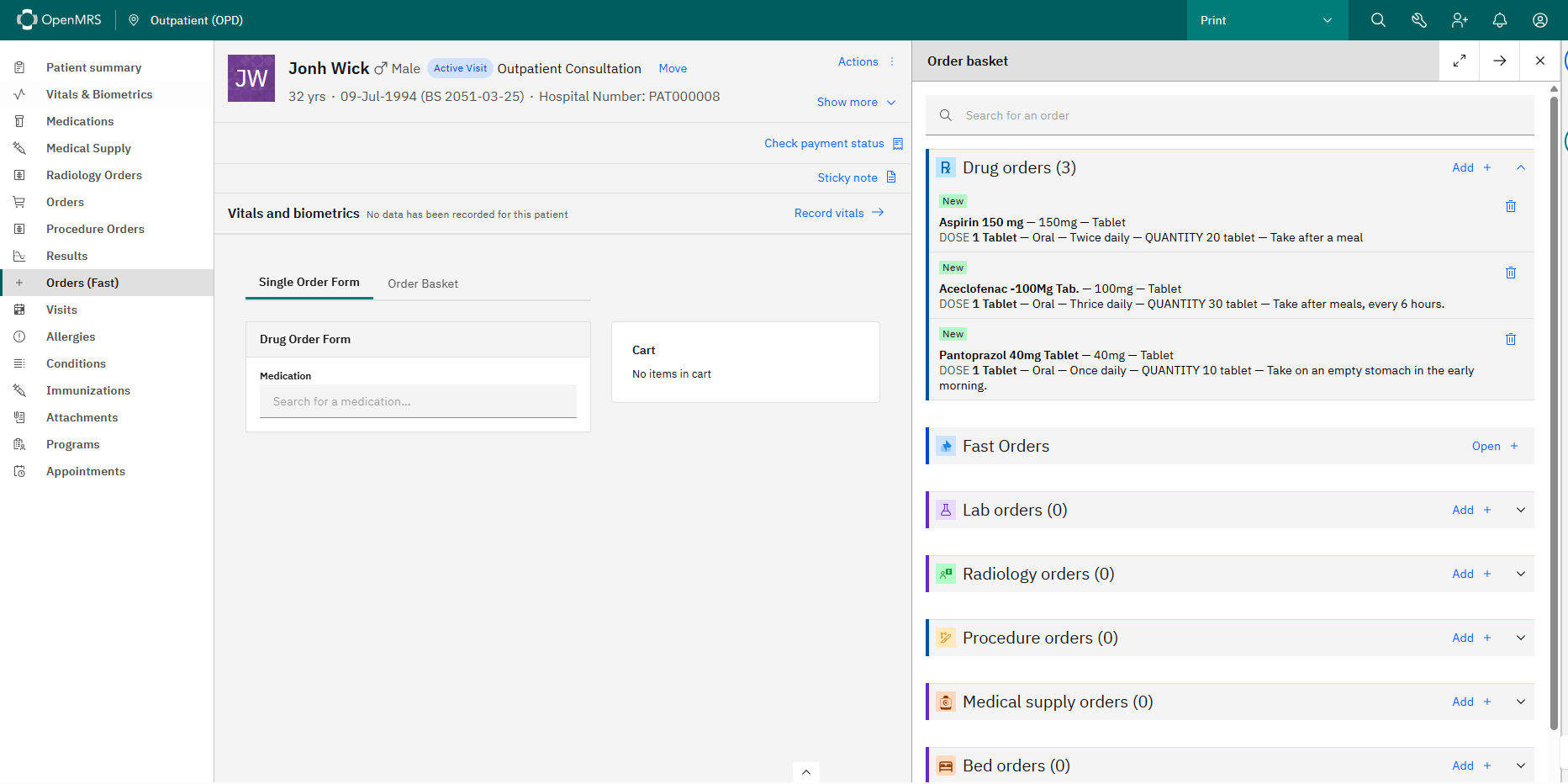
Pharmacy billing is processed through the Orders section of the Pharmacy shop. Search for the patient, select their pharmacy order, and proceed with payment.
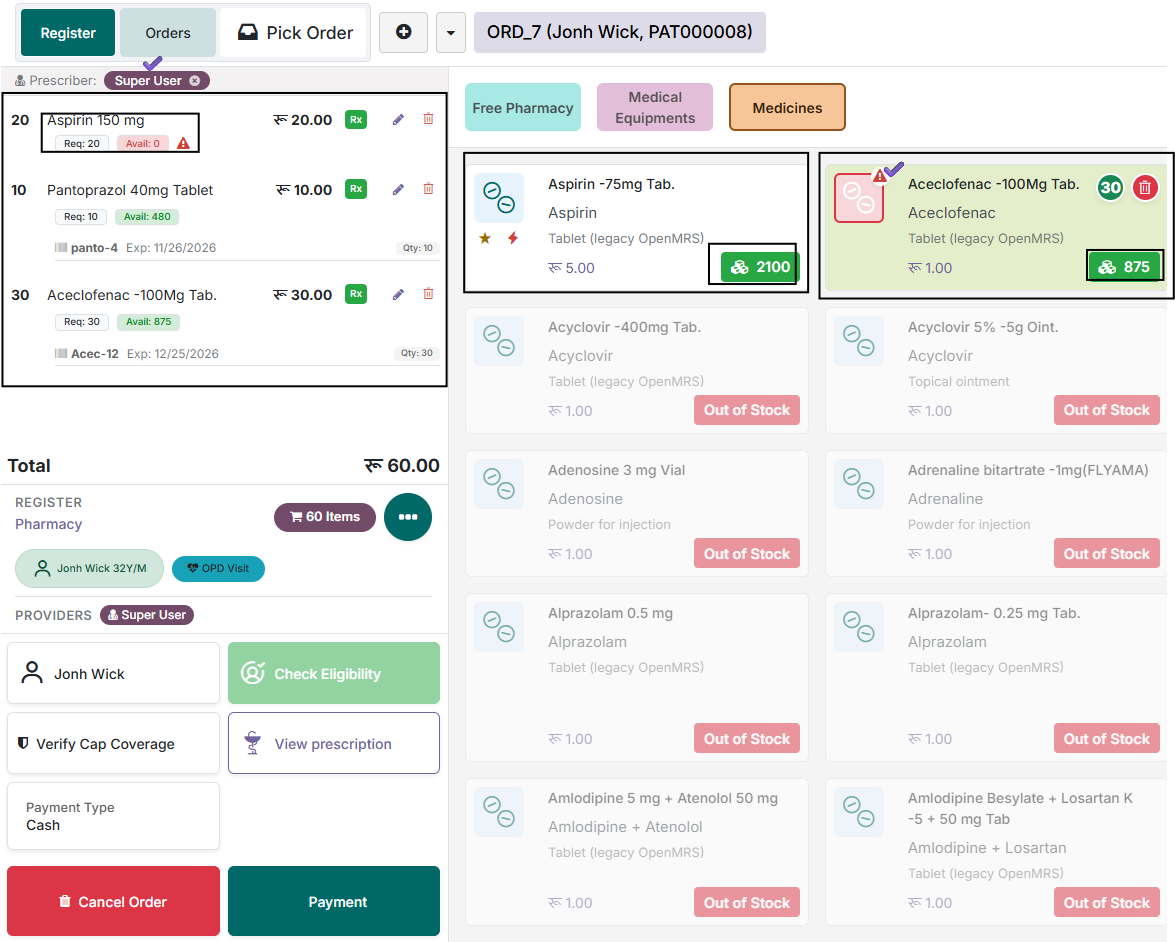
The pharmacy order screen shows the prescribed medications with medicine name, prescribed quantity, available stock, prescribing provider, and drug information. Before billing, the system runs the validation checks below.
Stock Availability
Available stock is shown for each medicine. If a medicine shows Avail: 0 it is out of stock, and the system blocks billing with a warning until the stock issue is resolved.
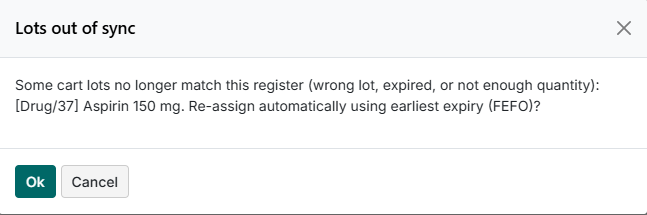
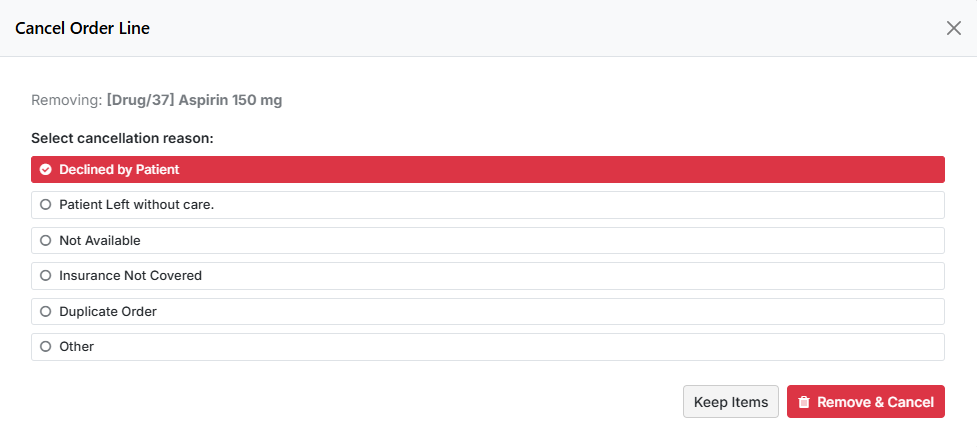
If the medicine is not available in the pharmacy, cancel and delete the order.

Lot Selection
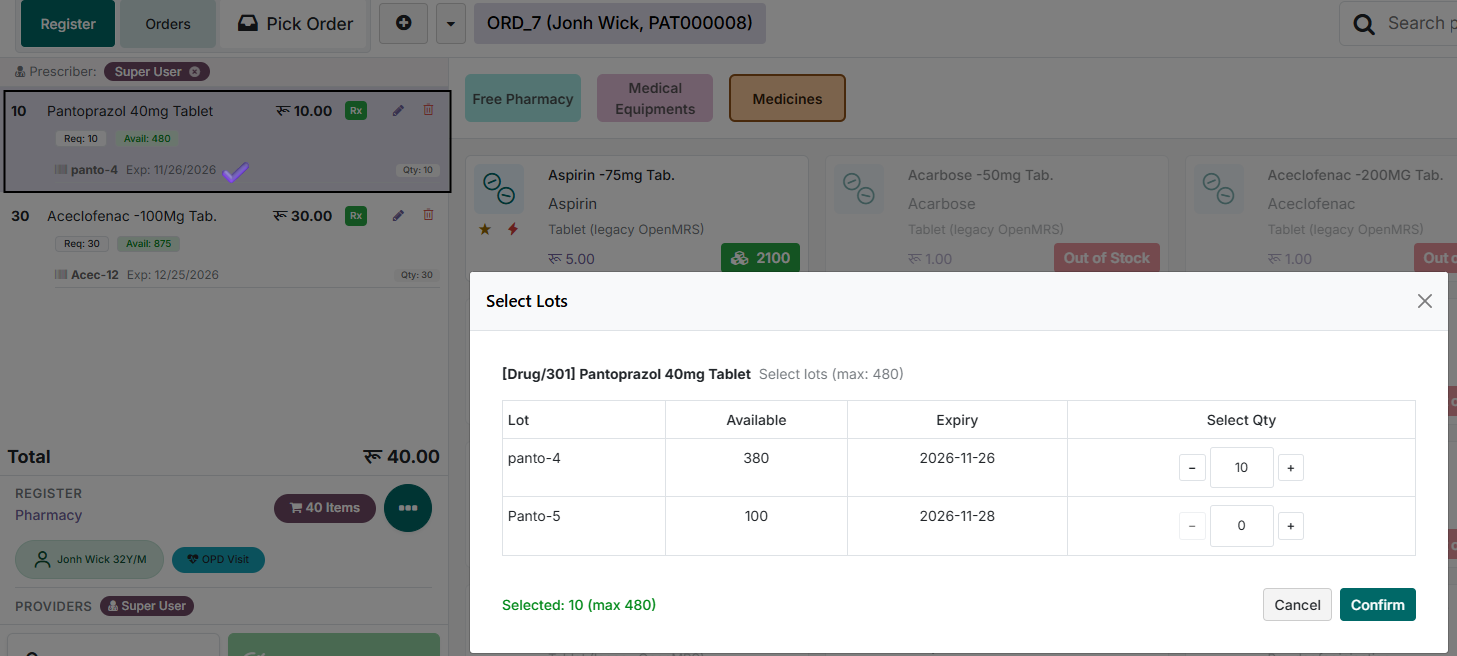
During dispensing, the system automatically selects the appropriate lot (batch) and serial number based on the configured inventory rule — FIFO (First In, First Out), LIFO (Last In, First Out), or FEFO (First Expired, First Out). FEFO helps reduce wastage by prioritizing the earliest expiry dates. If needed, you can change the lot or serial from the available list for a specific medicine.
Narcotic Drug Validation
Narcotic or controlled medicines are marked with a dedicated icon. If a controlled medicine is prescribed, the system verifies the prescribing provider's credentials. If the provider has no valid Nepal Medical Council (NMC) registration number, the prescription cannot be processed and billing is blocked.
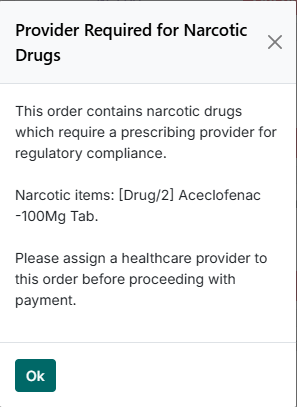
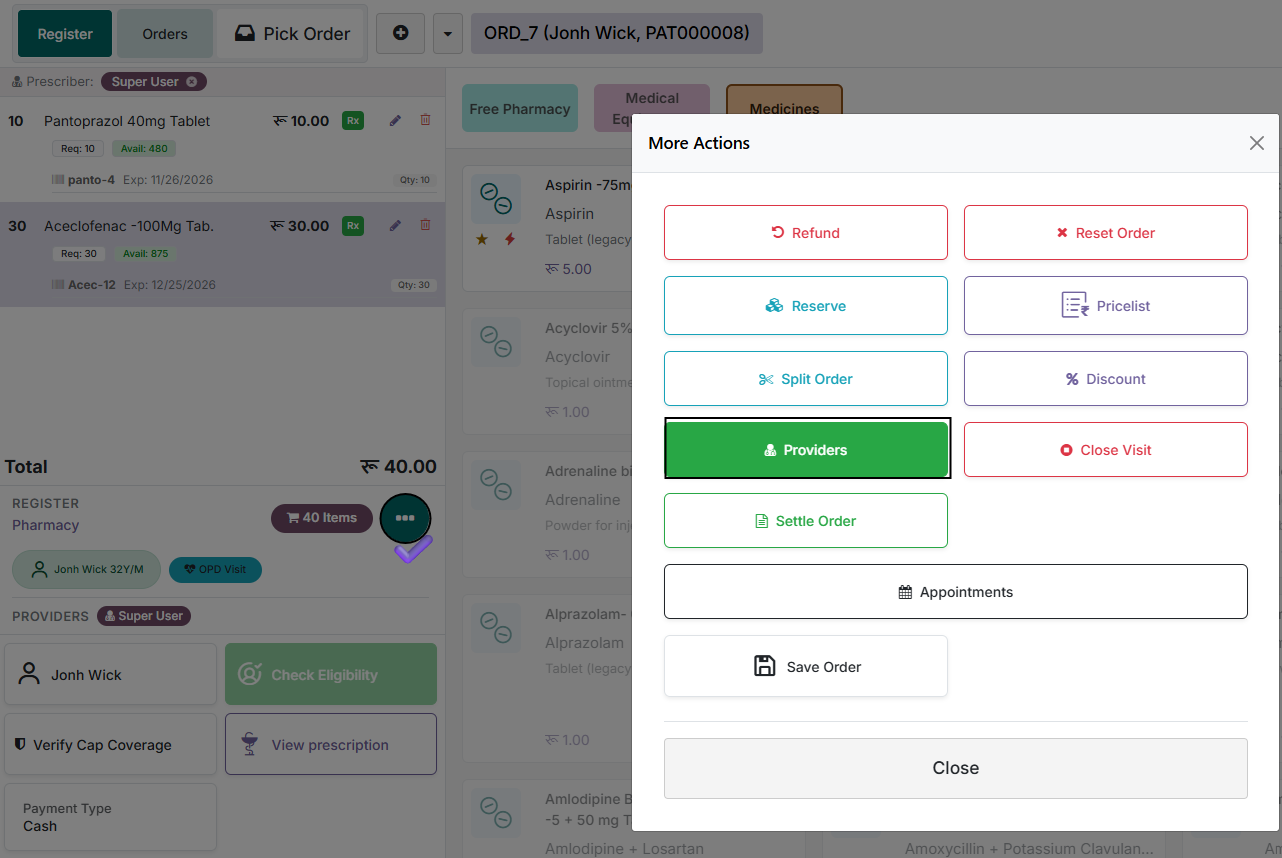
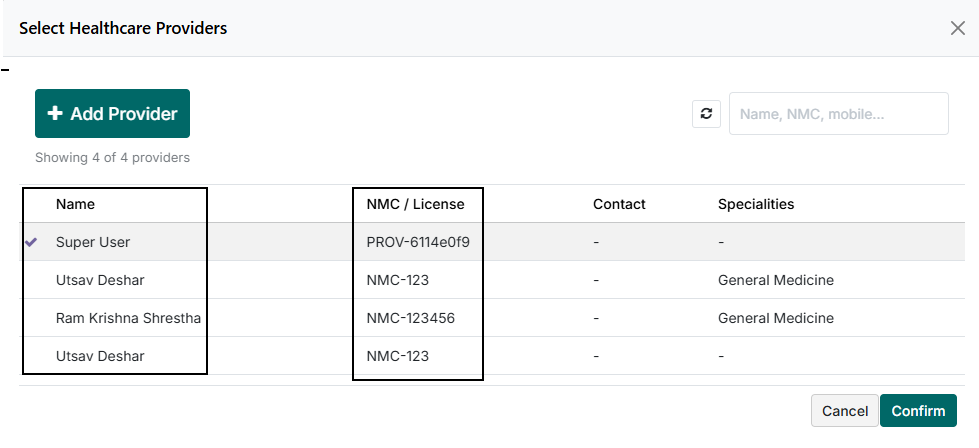
If needed, assign a provider who holds a valid NMC number.
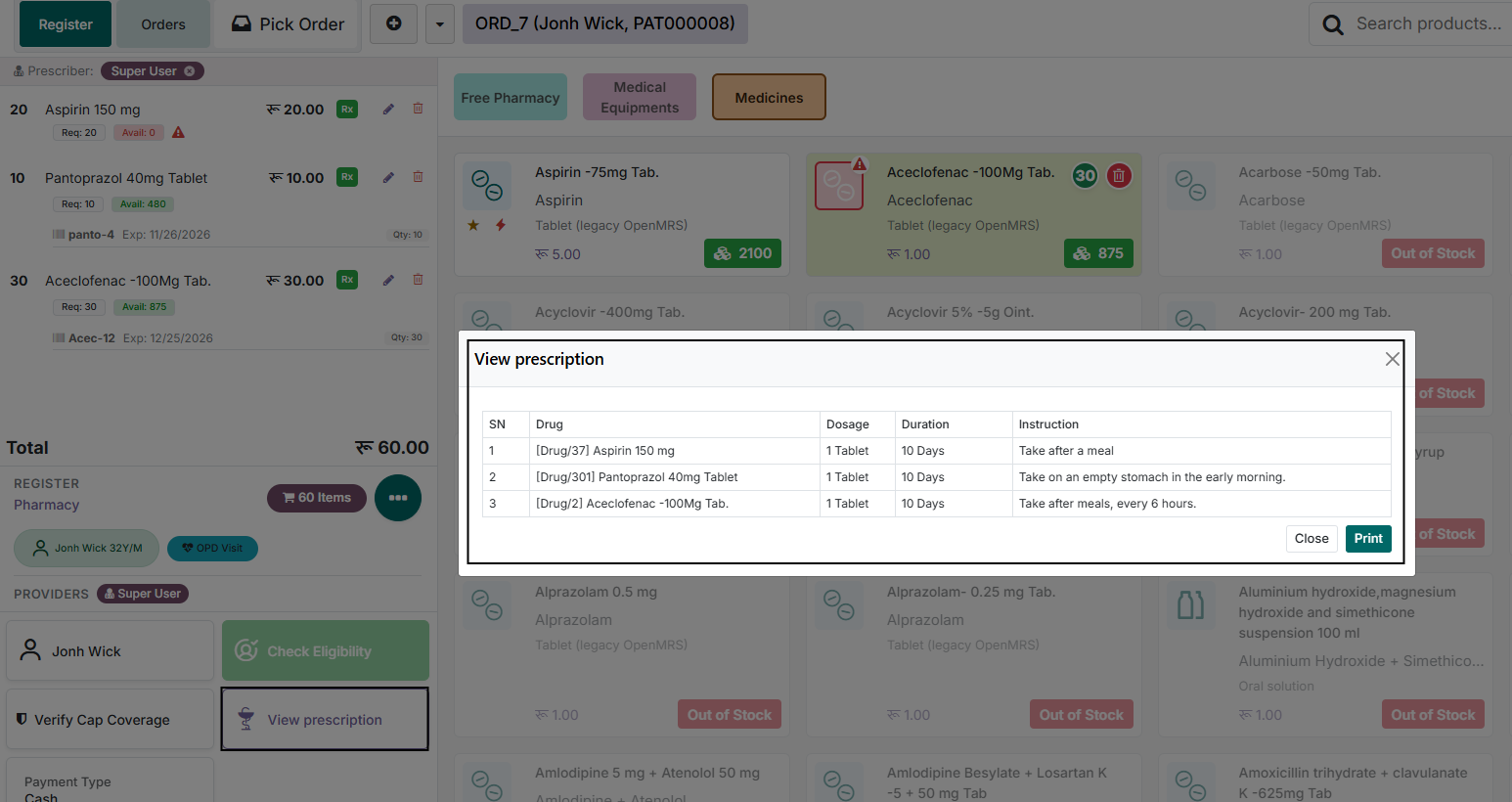
View Prescription
The View Prescription button shows the full prescription entered by the clinician: medicine name, dose, units, route, frequency, duration, patient instructions, SOS (if applicable), and dispensing quantity. This lets pharmacy staff verify the prescription before dispensing.
Once the checks pass, complete the transaction as described in Proceeding with Payment.