Inpatient Care (IPD)
When a patient needs inpatient care during an OPD visit, the provider admits them through the system. The admission order records the inpatient service details and moves the patient's care pathway from outpatient to inpatient. The admitted patient is linked to a ward and bed, and the inpatient visit stays active until discharge.
Admitting a Patient
To start admission, complete the Disposition Note in the observation form section. Select the admission destination or ward based on the patient's condition and the hospital's available services — for example, Inpatient Ward or Emergency Department.
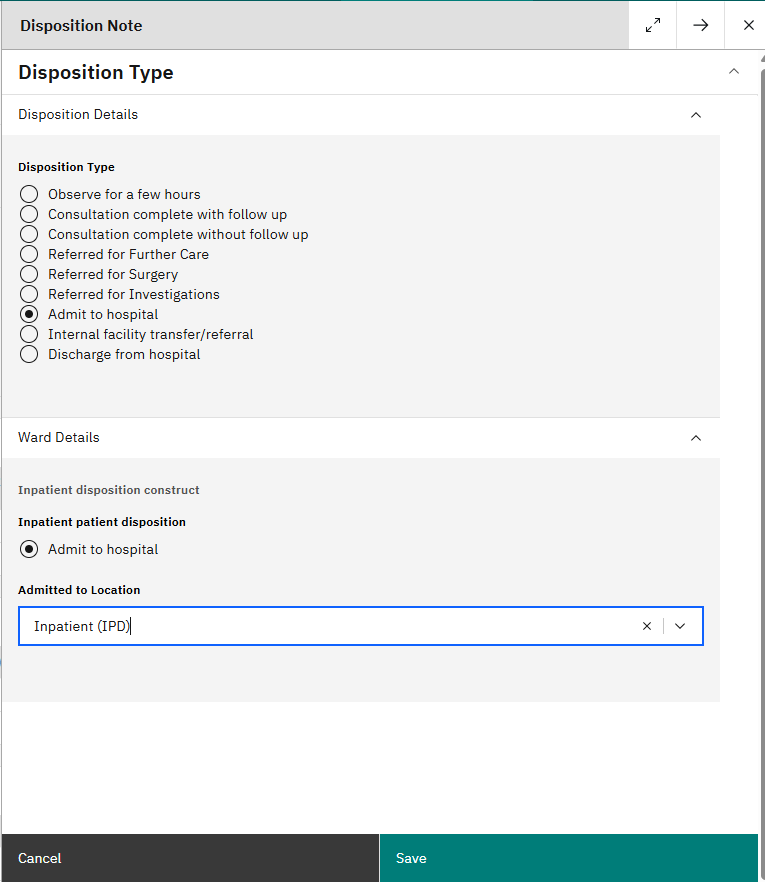
Once the disposition is recorded, the admission workflow begins and the care team can continue inpatient management through to discharge.
Inpatient management
The admission request from the Disposition Note is sent to the Wards section, where the duty nurse handles the rest of the admission.
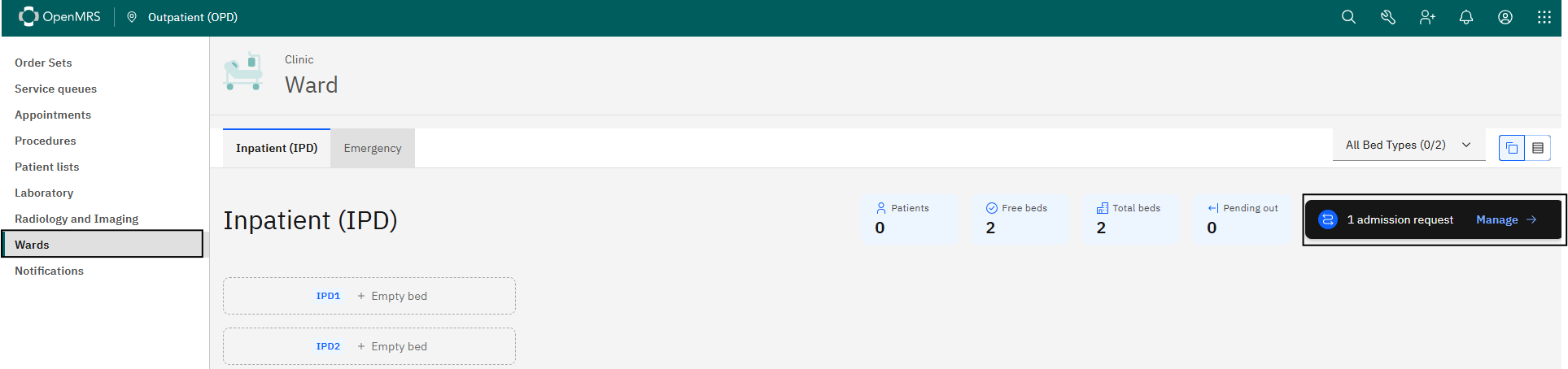
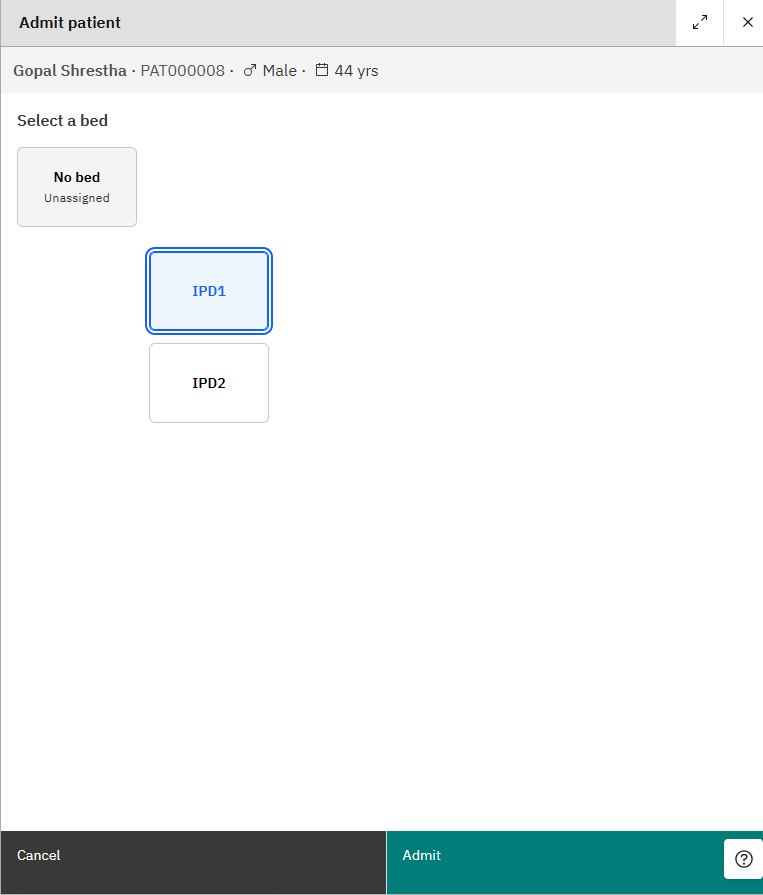
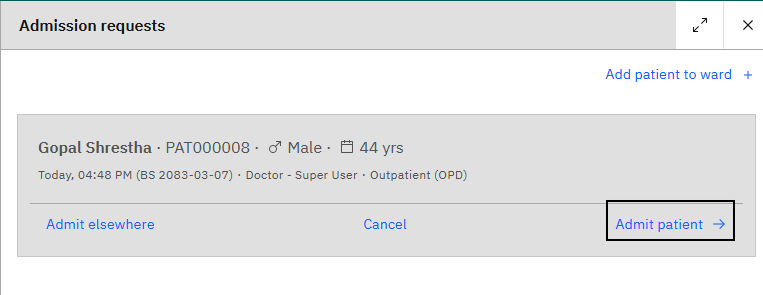
Proceed through the Manage button, which opens Admission Requests. Use Admit Patient, then assign a bed from the list of available beds.
The visit type changes as part of this step: the patient's visit started as OPD during consultation and becomes IPD on admission. The system closes the OPD visit and opens a new IPD visit.

IPD Summary Dashboard
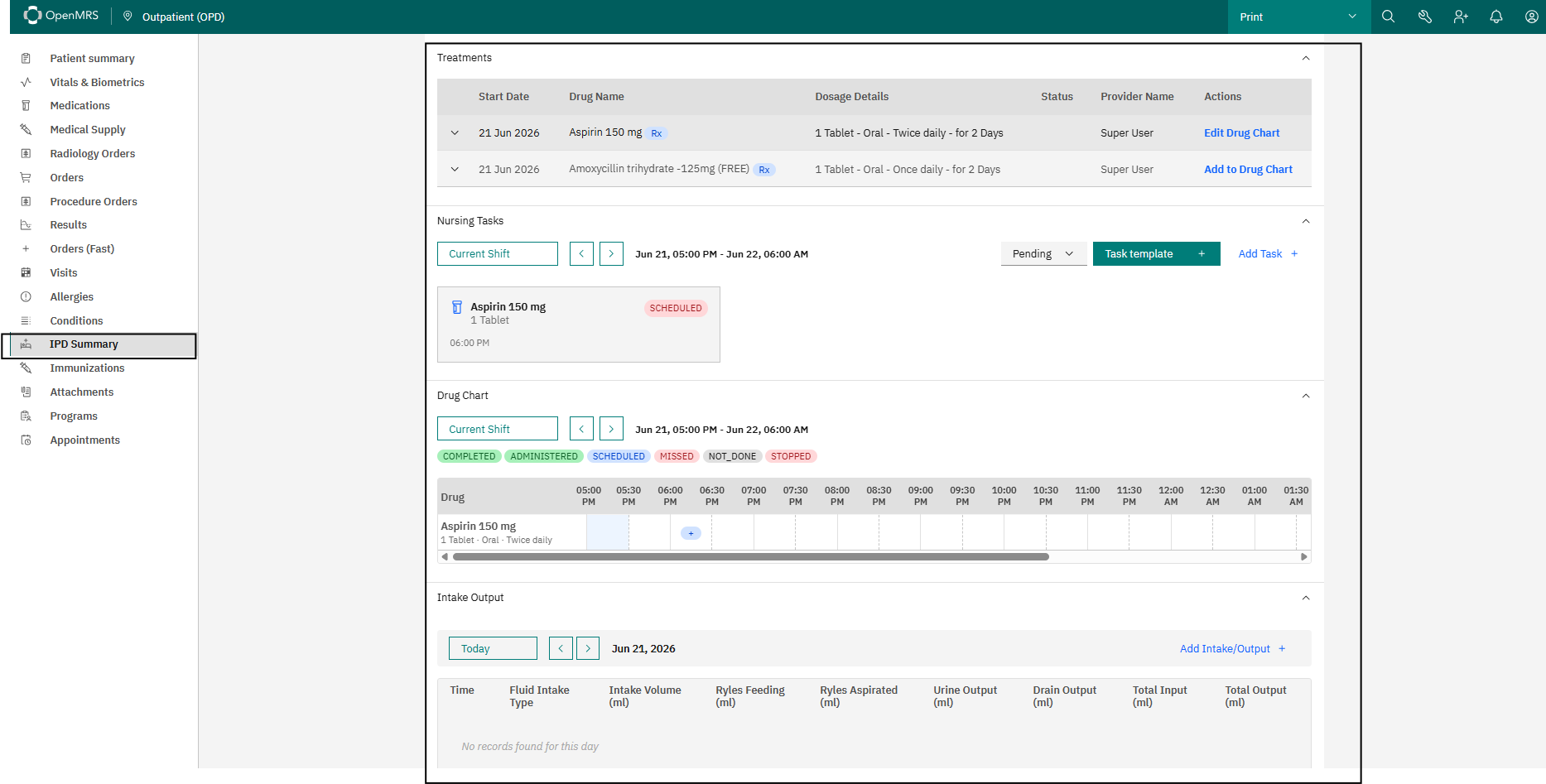
After admission and bed assignment, an IPD Summary section becomes available in the patient dashboard. It gives a single-screen overview of the inpatient stay:
- Vital signs
- Diagnoses and conditions
- Allergies
- Treatment plan
- Nursing tasks
- Drug charts and medication orders
- Intake and output monitoring
Treatment and Drug Chart
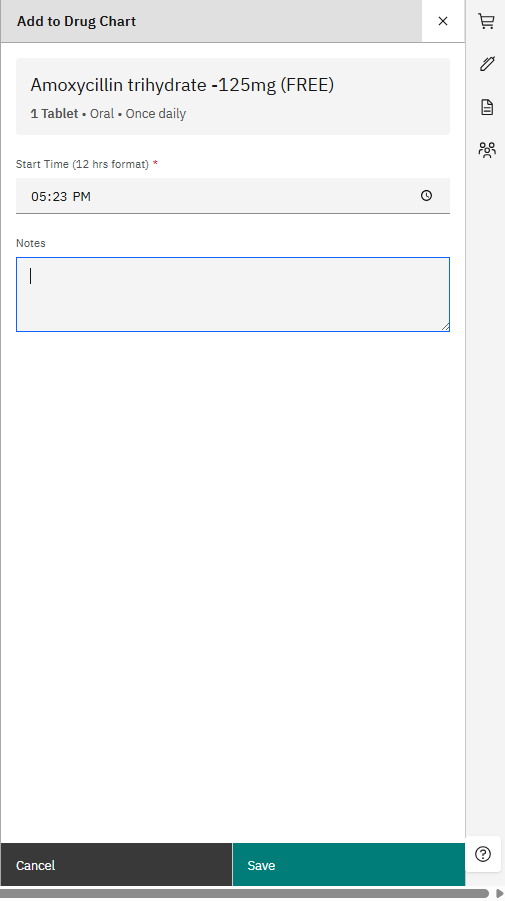
Medications prescribed through the Order Basket are listed automatically in the Treatment section of the IPD Summary. The duty nurse reviews them and adds them to the Drug Chart using Add to Drug Chart.

When adding a medication to the drug chart, the nurse records the scheduled administration times according to the prescribed dose, frequency, and treatment plan.
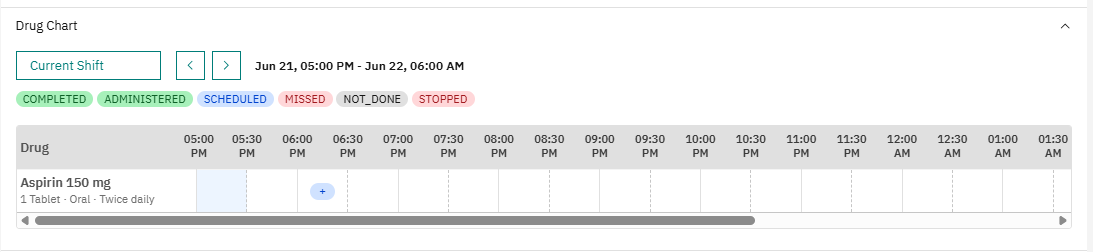
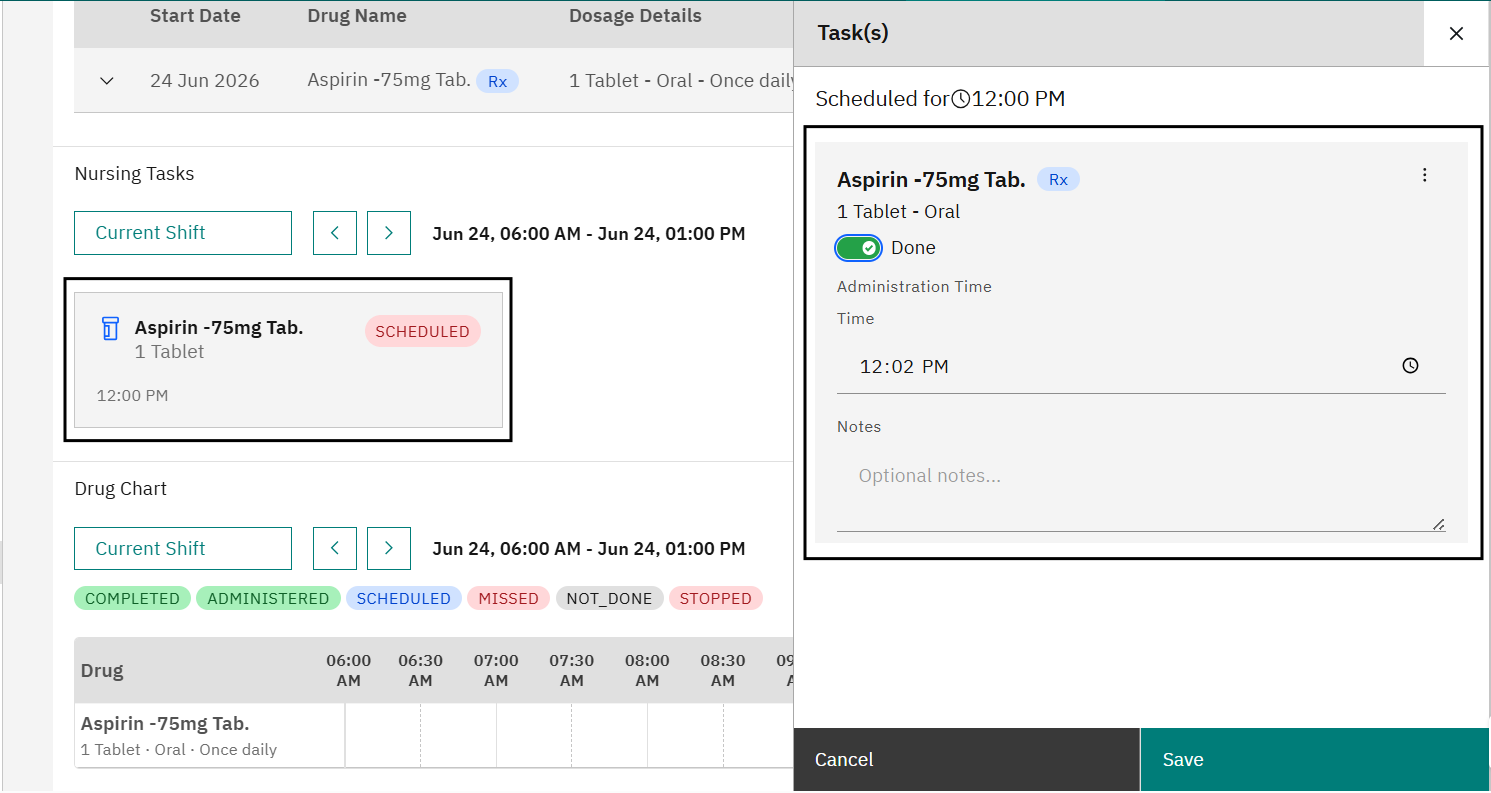
Once added, the medication appears in the drug chart list with its full prescription and administration details — medication, dose, route, frequency, scheduled times, and current status. The chart tracks each dose as scheduled, administered, missed, withheld, or completed.
Nursing Tasks
The Nursing Tasks section lets providers create and assign nursing activities: vital sign monitoring, medication administration, wound dressing, specimen collection, fluid monitoring, patient observation, and other interventions. Assigned tasks appear in the list, where nursing staff view, update, and mark them complete.

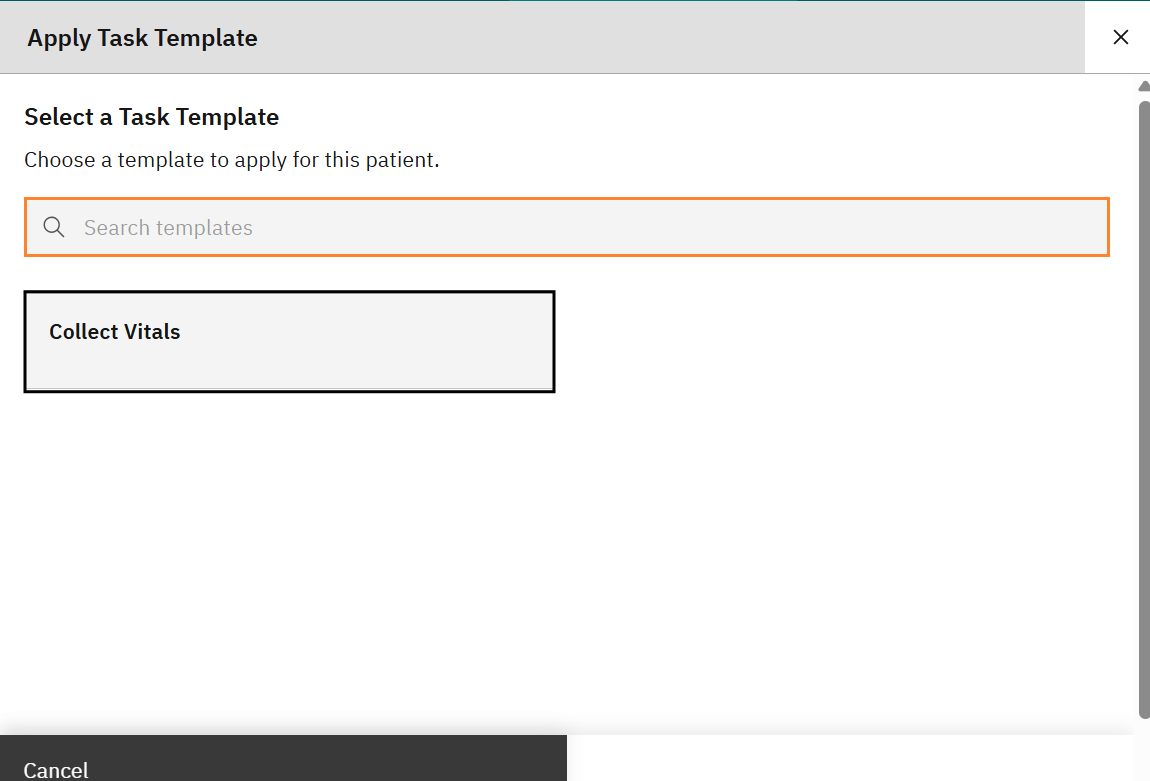
To apply a task, use the Task Template button to list the available non-medication nursing task templates configured in the system.
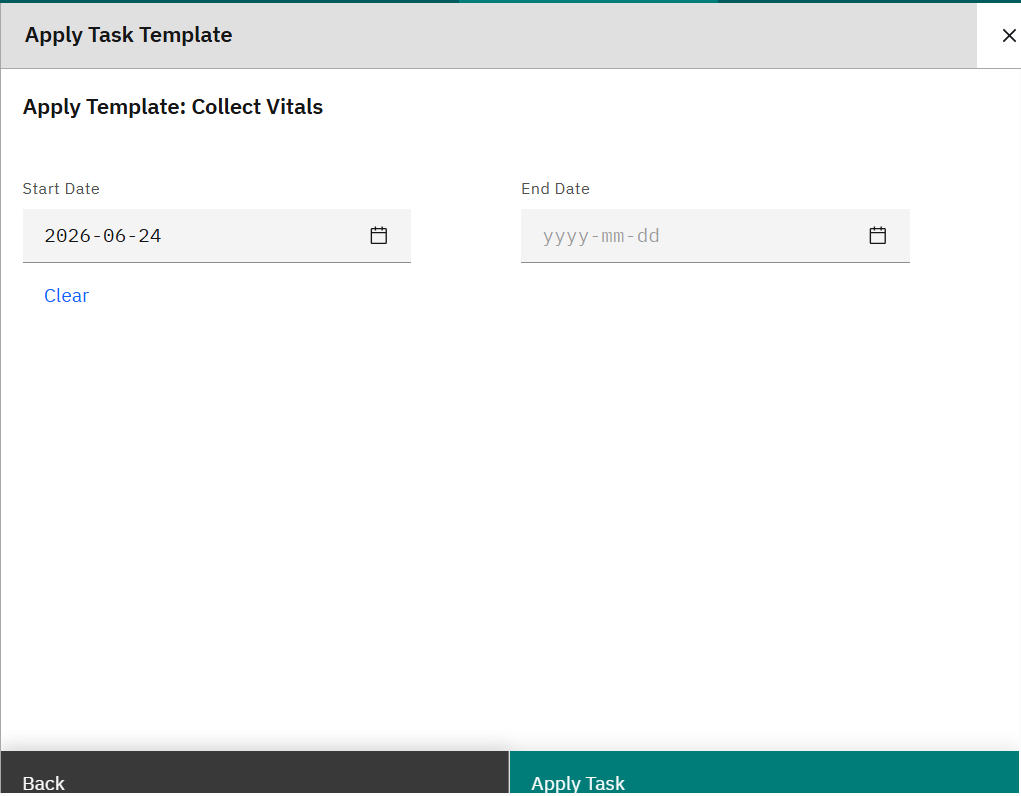
Once the task is done, update its status in the system.
Patient Discharge
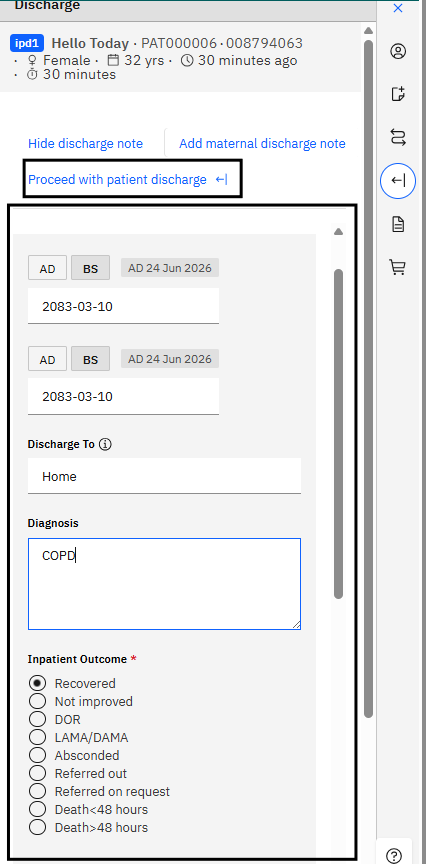
When treatment and inpatient care are complete, the provider starts the discharge process. The discharge record captures the discharge date, final diagnosis, condition at discharge, treatment summary, medications, and follow-up instructions.
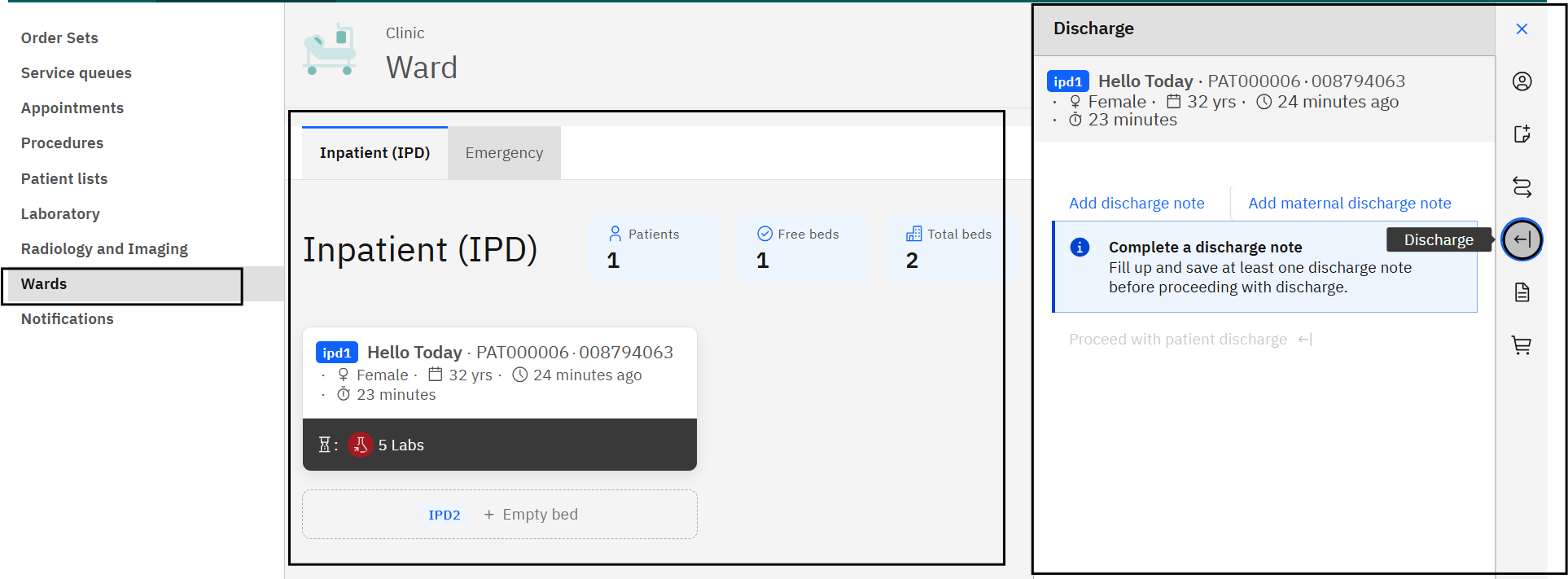
Once the Discharge Note is filled, nursing staff proceed with Proceed with Patient Discharge to complete the process.
On discharge, the inpatient visit is closed, the assigned bed is released for new admissions, and the patient is removed from the active inpatient list. The system also generates a Discharge Summary that can be printed and given to the patient as a record of the hospitalization and post-discharge care instructions.