Order Management
During a consultation, providers raise orders for the patient through the Order Basket in OpenMRS. The basket handles every order type — laboratory tests, radiology investigations, drugs, and procedures — and links each order to the patient's encounter. When an order is submitted, it is transmitted to the system that fulfils it and, for billable services, a quotation is created in the Odoo POS.
Lab Orders
Providers can order laboratory tests during the consultation. Requested tests are linked to the patient's encounter, and the complete lab history stays available for review.
There are two ways to place a lab order.
From the global search: search for the test, add it to the Order Basket, and submit.
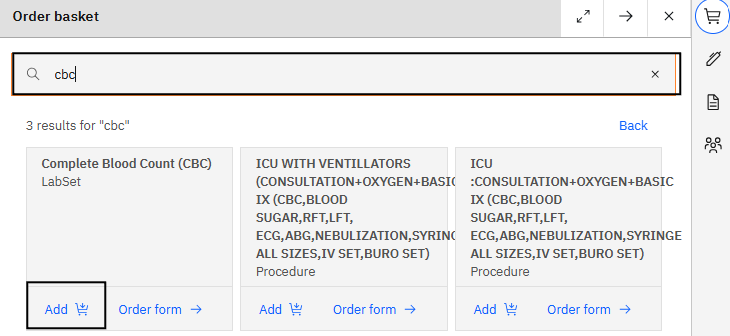
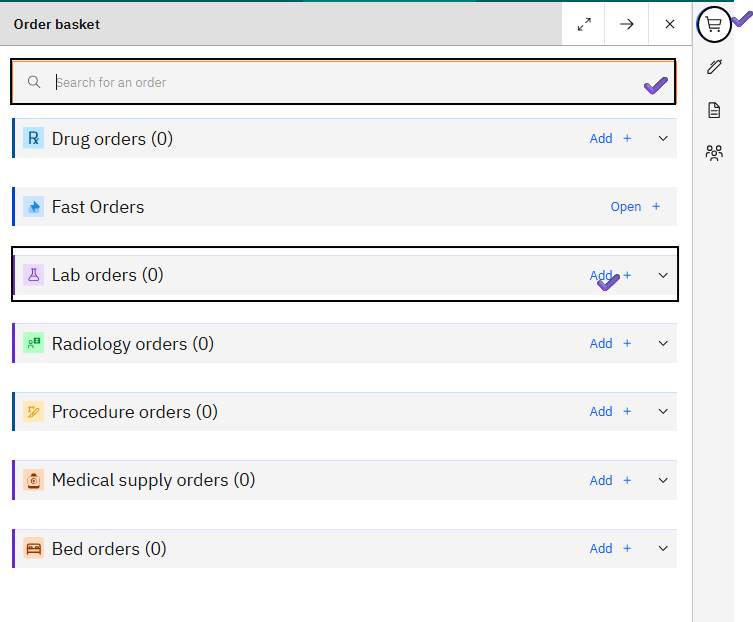
From the Lab Orders section: use the Add button to see the full list of available tests and panels, then select or search for the one you need.
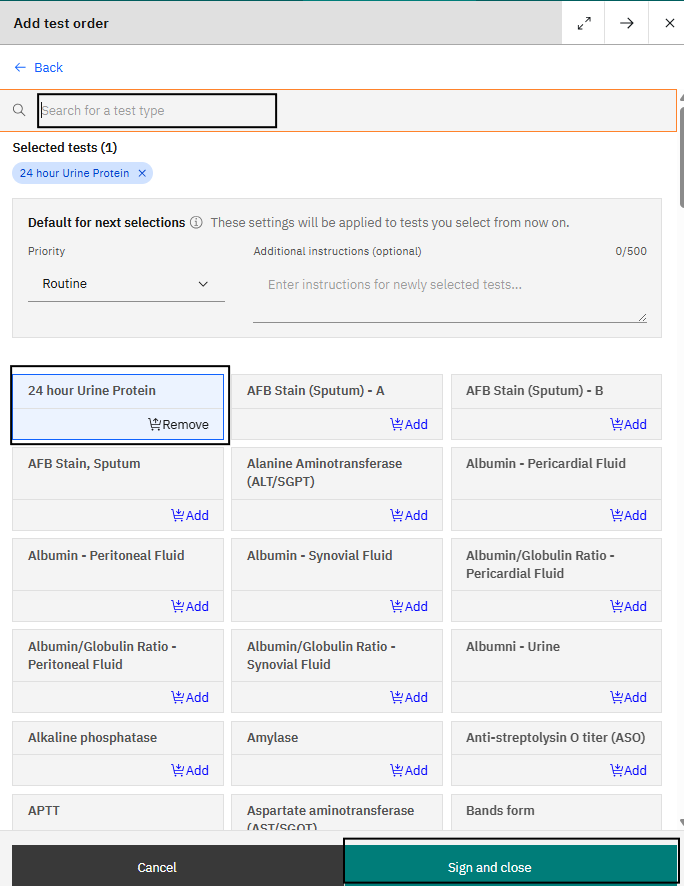
When a lab test is ordered, the system automatically creates a quotation in the Odoo POS for billing and transmits the order to the OpenELIS laboratory system for processing.
The ordered test appears in the Order section of the patient dashboard.
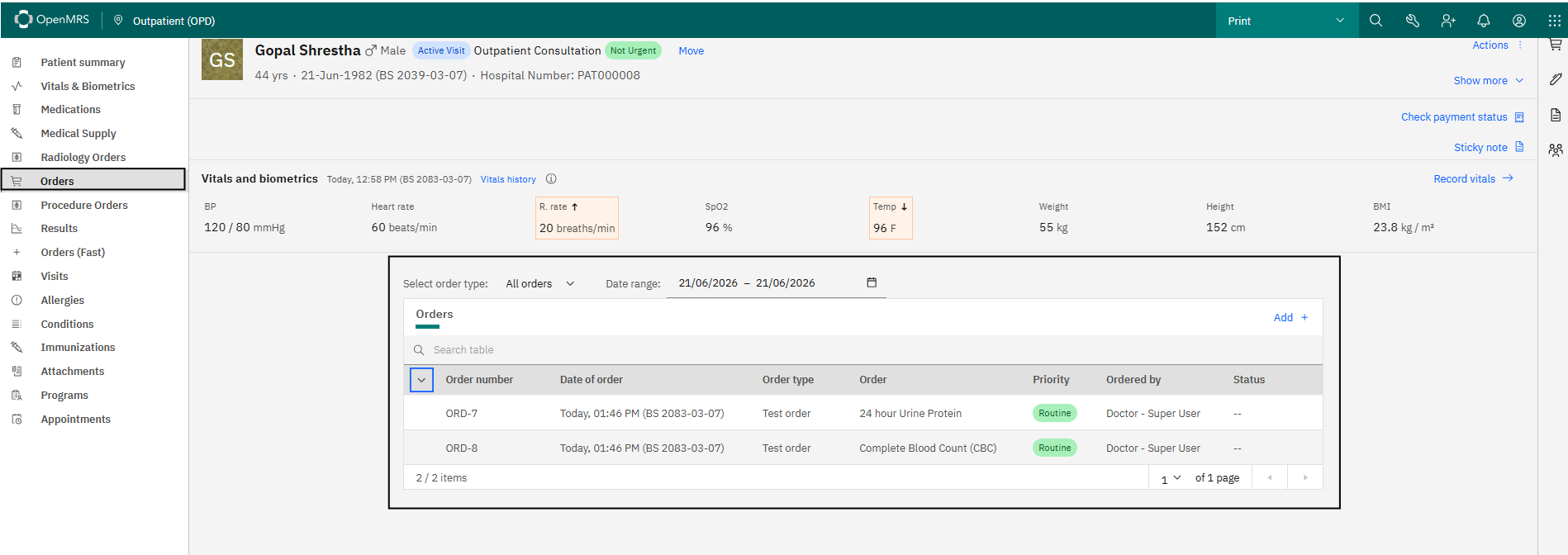
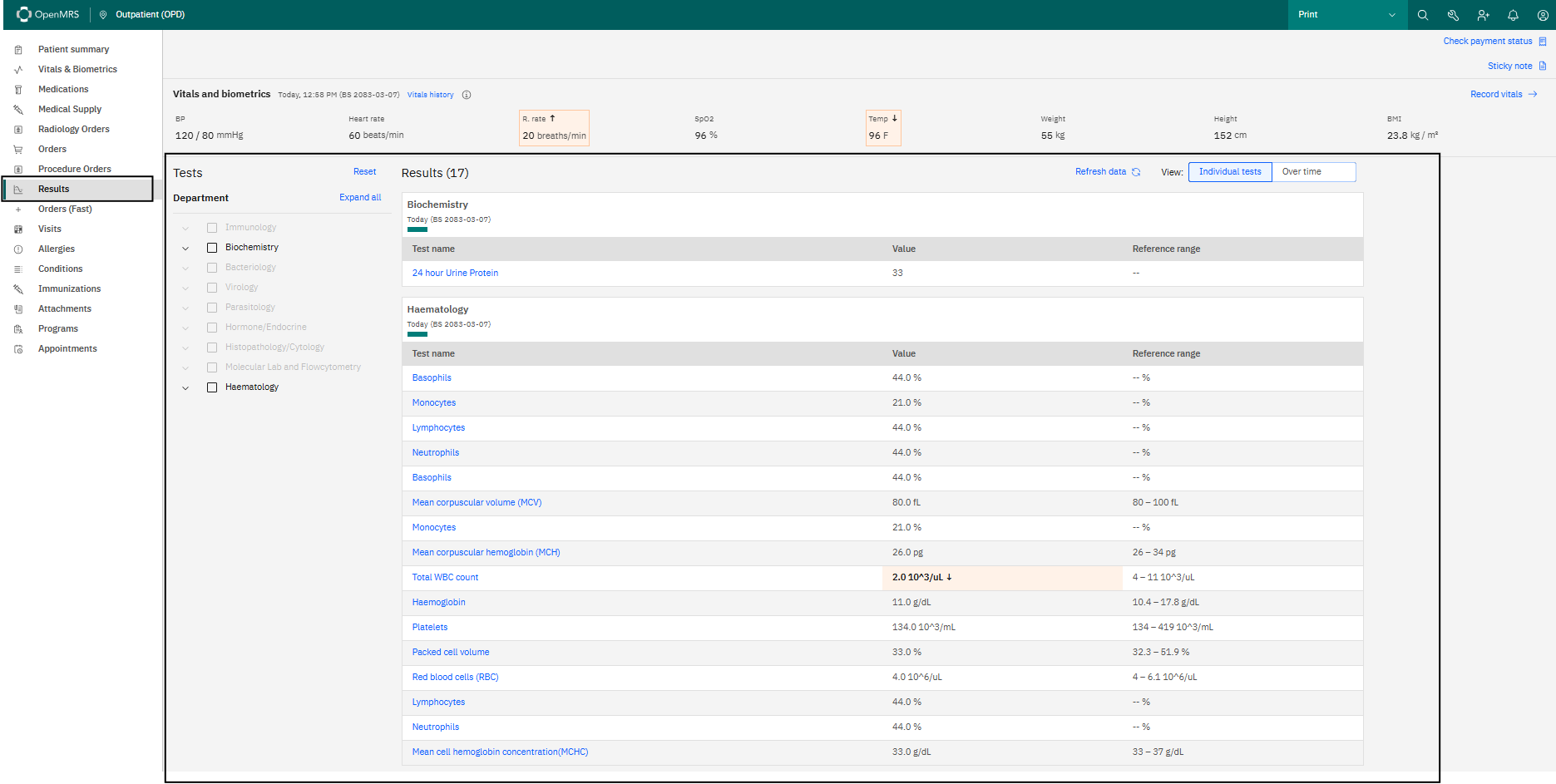
Once OpenELIS publishes the result, it appears in the Result section of the patient dashboard.
Radiology Orders
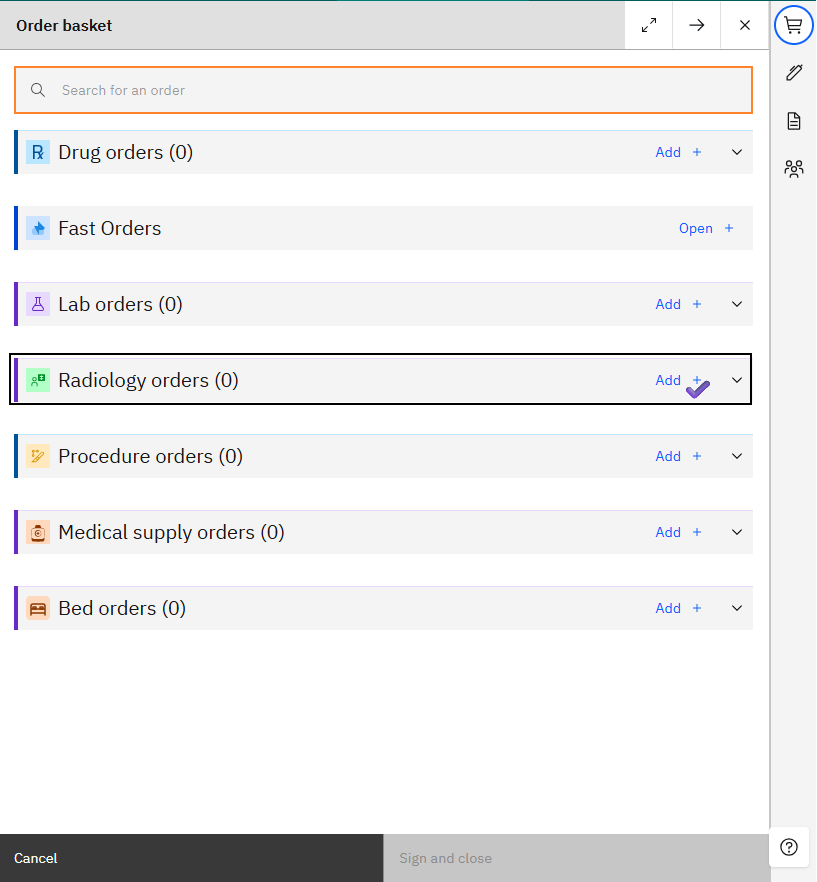
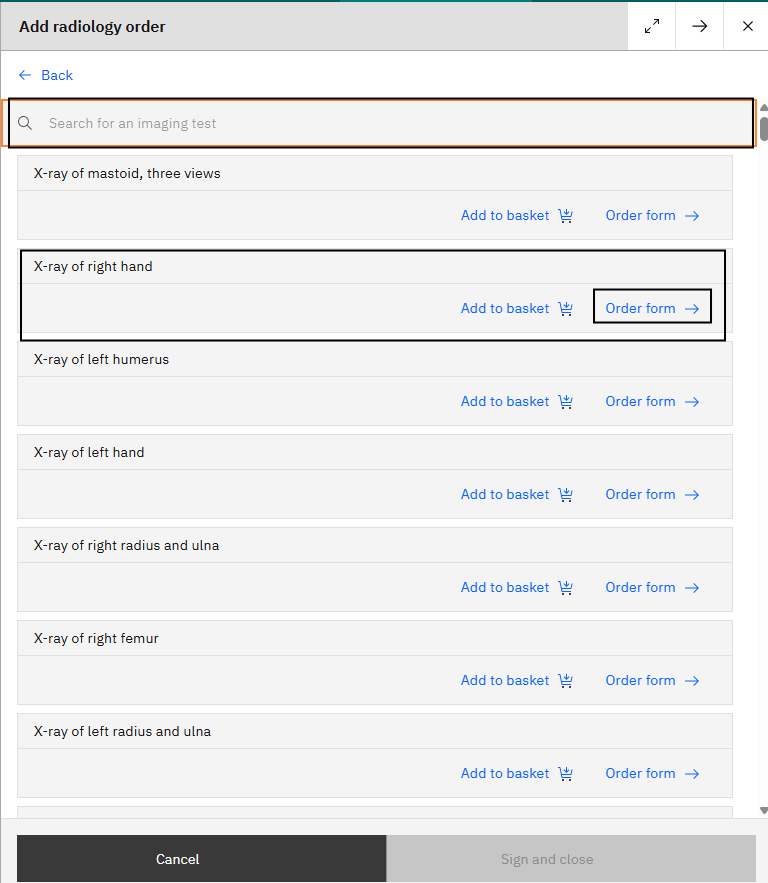
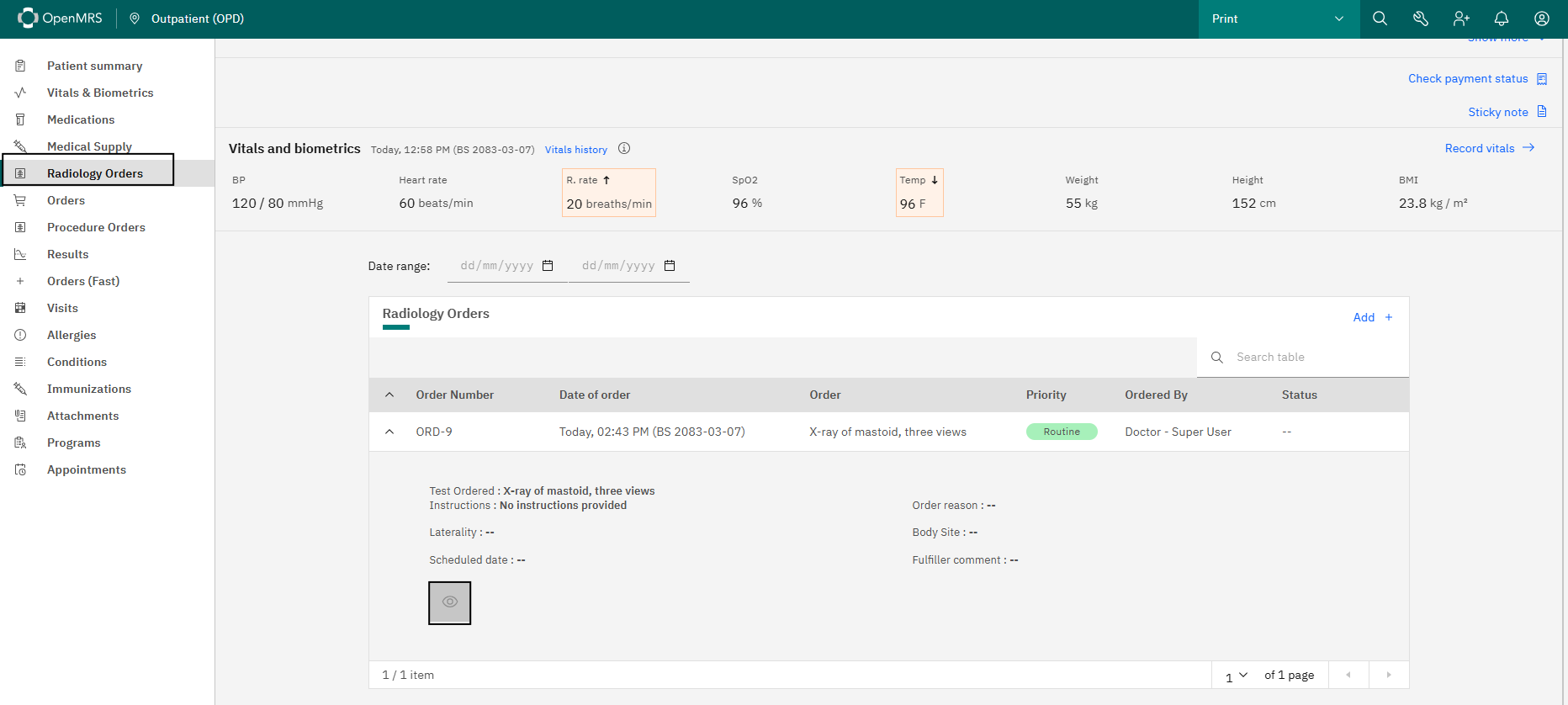
Radiology investigations are ordered the same way — select the imaging service and link it to the patient's encounter. Place the order through the Order Basket, Radiology Order section.
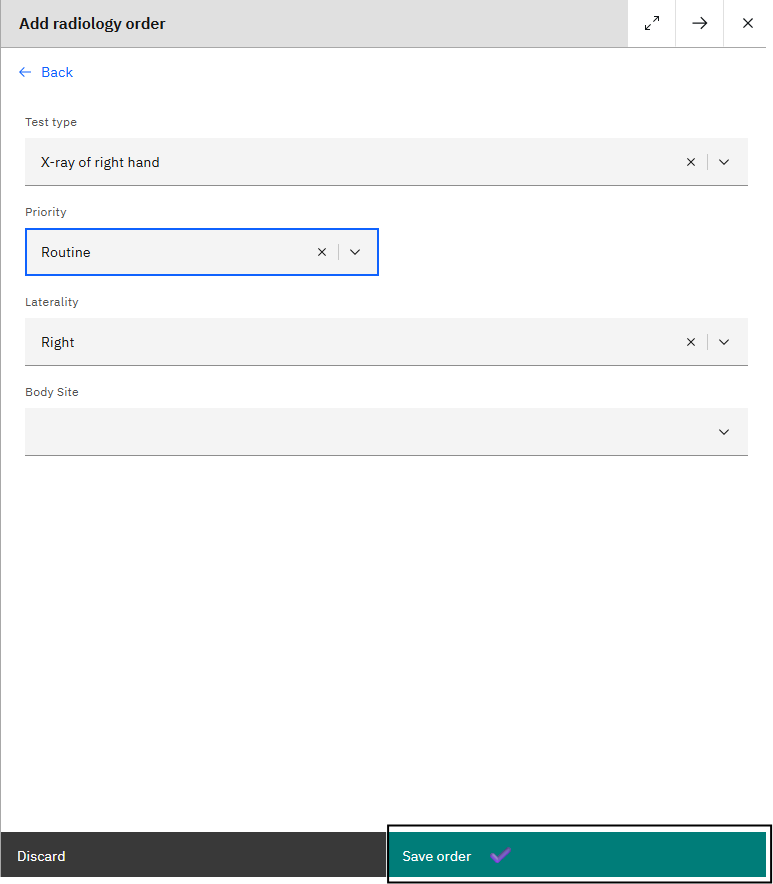
Radiology orders appear in the Radiology Orders section of the patient dashboard. The clinical system is integrated with the Orthanc imaging system, so orders synchronize to Orthanc automatically. Once images are uploaded, providers can review them directly from the Radiology Orders section by selecting the View (eye) icon.
Drug Orders
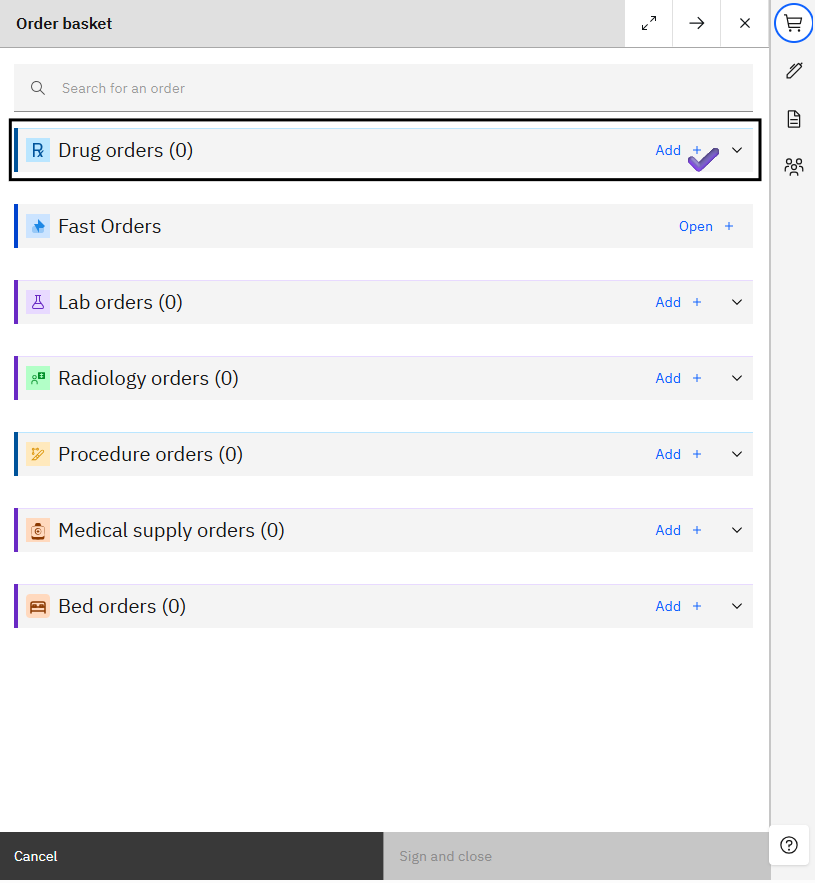
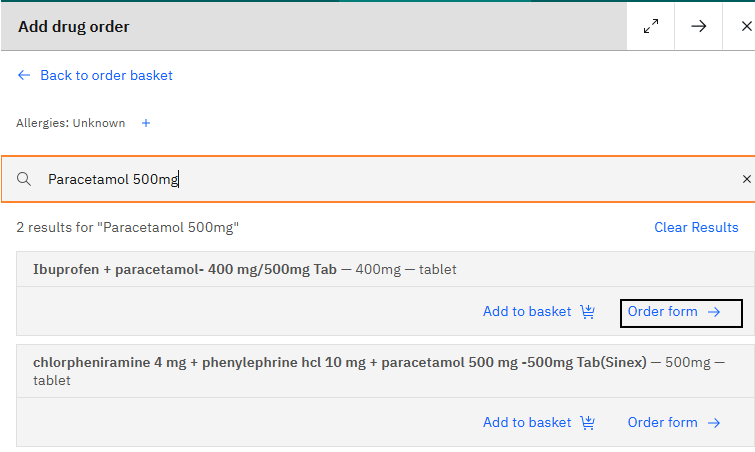
After finalizing the diagnosis, providers prescribe medication from the Order Basket. Available pharmacy medicines are selected from a dropdown.
Prescription form
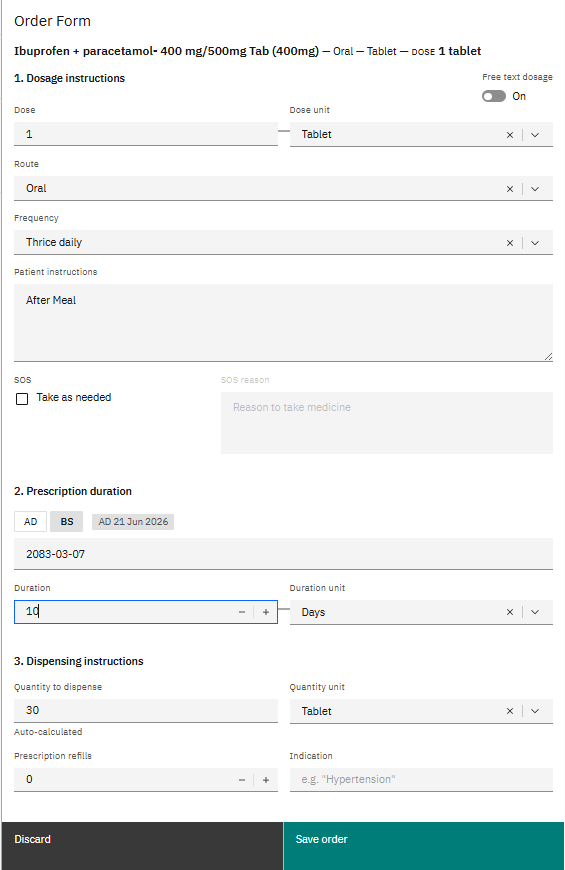
| Field | Meaning |
|---|---|
| Dose | Amount of medicine given each time |
| Dose Unit | Measurement unit of the dose (tablet, ml, mg) |
| Route | Method of administration (oral, injection, topical) |
| Frequency | How often the medicine is taken (once daily, twice daily) |
| Patient Instruction | Additional guidance for the patient |
| SOS (as needed) | Medicine to be taken only when required |
| Prescription Duration | Treatment period the medicine is prescribed for |
| Duration Unit | Duration measurement (days, weeks, months) |
| Dispensing Quantity | Total quantity required for dispensing |
Note
Once you enter the Dose, Frequency, and Prescription Duration, the system automatically calculates and fills the Dispensing Quantity.
Procedure Orders
Procedures are ordered from the same Order Basket — select the procedure, link it to the patient's encounter, and submit. The order is recorded against the visit and billed through Odoo like other billable services.